Publishing & going live
SCNX Sites is in active beta, and we're changing a lot of things as we go. We'll be reworking this documentation once the current beta cycle wraps up, so some details on this page may be outdated in the meantime.
Your site has two states: the draft you edit, and the live version visitors see. This page explains how one becomes the other, and which parts of your site update the moment you change them.
Draft vs. published
Everything you change in the editor, on the Pages and Navigation pages, and in some of the Settings cards goes into your draft. The draft is private: only people with access to the site can see it. Visitors keep seeing the last version you published.
Until you publish for the first time, your site is a draft and is not public at all. Its address shows nothing yet, and Analytics does not count any views.
Publishing
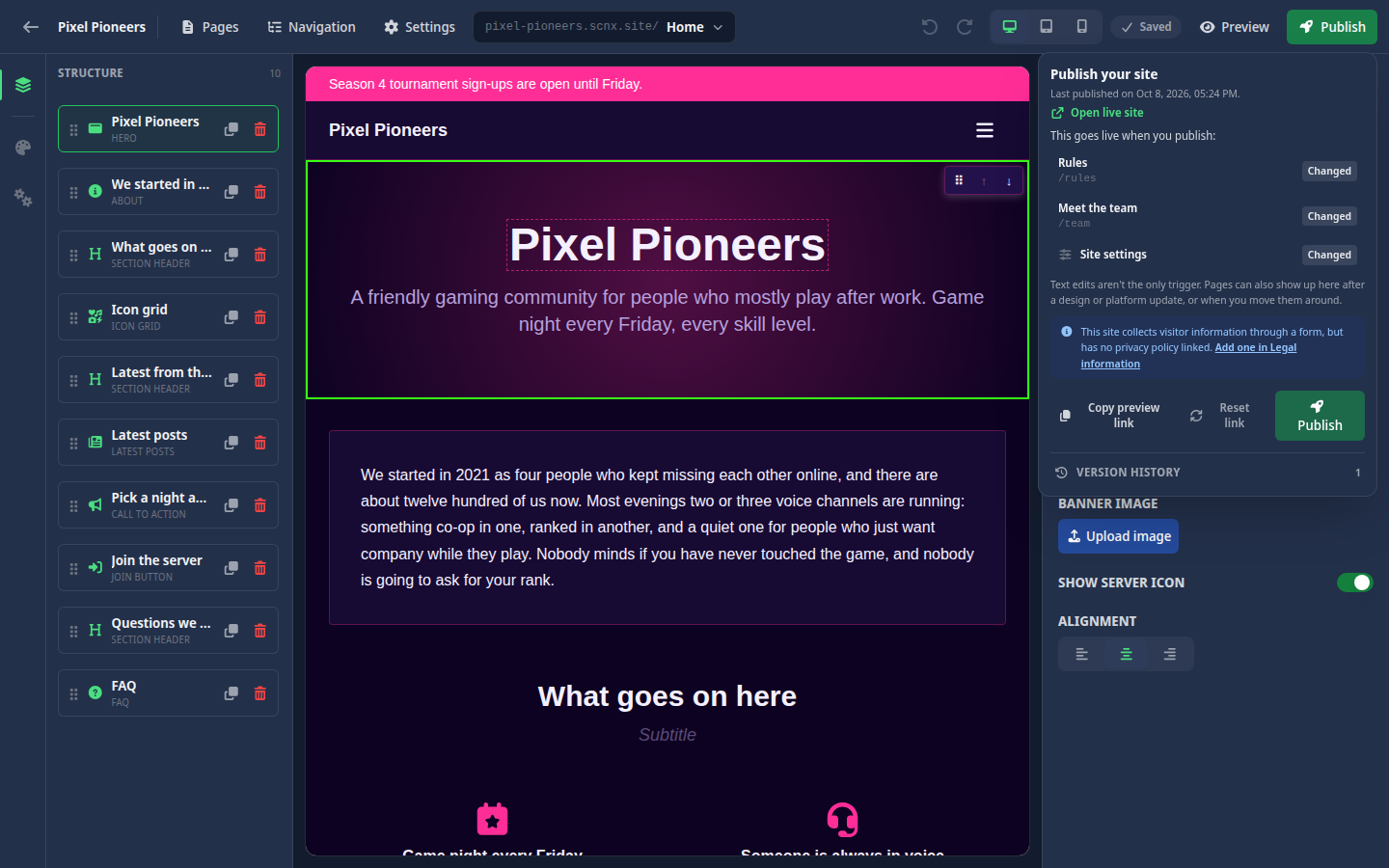
You publish from the editor. Click Publish in the top bar to open the publish popover. You need edit access to the site for this. Opening the popover first saves anything still pending, then it shows you what will go live:
- a list of the pages that changed since your last publish, marked New, Changed or Removed,
- a Site settings row if your site-wide settings changed (for example your design, menu, footer, site name or share image).
Check the list, then click Publish at the bottom of the popover. There is no second "are you sure?" step: the popover is the confirmation.
A few more things you may see in the popover:
- Last published on with the date, and an Open live site link once your site is live.
- If nothing changed, the button in the top bar reads Published, the popover says Everything is published. and there is nothing to do.
- Pages can show up as Changed without you editing their text, for example after a design or platform update, or when you move pages around. That is normal.
- If some blocks still need details, the popover tells you how many. Fill them in first. The blocks that need attention are marked in the editor.
- If some of your last edits could not be saved, the popover warns you that your last saved draft goes live and the open changes stay in the editor.
- If your site has a form but no privacy policy linked, you get a reminder with a link to fix it. It does not stop you from publishing. See Forms for more on this.
What needs a publish and what is live
When you publish, your site is snapshotted: the exact pages, blocks, text, design and site-wide settings at that moment are frozen and served as your live site. Editing the draft afterwards does not touch the live version until you publish again. This keeps your live site stable while you work on the next version.
Some things, though, are deliberately live. They reach visitors as soon as you save them, without a publish:
| Needs a publish | Live (updates right away) |
|---|---|
| Pages, blocks and their text | Blog posts (each post goes live when you publish the post itself, or at its scheduled time) |
| The Form block on a page, including its button and thank-you text | Your blog's display settings on the Blog page |
| Design and theme | Forms and their answers, Bot protection and Legal information |
| The navigation menu and the footer | Events |
| Page layout settings | Redirects |
| Site name, description, language and favicon | The announcement bar |
| Share title, share description and share image | Maintenance mode |
| The generated share card switch | |
| Your address ending and custom domains | |
| The "This site runs on SCNX" line, which follows your server's plan |
The idea is simple: what your pages look like stays under your control and only changes when you publish. News, forms, events, quick notices and your addresses are things you expect to be immediate.
The General and Search & sharing cards on the Settings page have their own Save button, but saving there only updates your draft. Your new site name, description, language, favicon or share texts reach visitors with your next publish, and the publish popover lists them as Site settings. The share card switch in the same card is the exception: it is live.
Preview before you publish
Click Preview in the editor's top bar to open your current draft in a new tab, exactly as visitors would see it once you publish. It opens through a private preview link, so it works before your site is public and while maintenance mode is on.
To share the draft with a teammate, open the publish popover and click Copy preview link. Anyone with that link can see your draft, so only share it with people you trust.
If a preview link ended up somewhere it should not be, click Reset link in the publish popover. This creates a new preview link and stops every link you shared before from working. Resetting needs admin access.
Version history and rollback
Every time you publish, that version is kept. Open the publish popover and expand Version history to see your published versions by date. The current live version is marked Live. People with view-only access see a Version history button in place of Publish, so they can look at the history too.
If a publish introduced a problem, click Roll back on an earlier version and confirm. That version becomes your live site again right away. Rolling back needs admin access.
Rolling back only changes what visitors see. Your draft stays as it is, so your next publish makes the draft live again. Your last ten versions are kept, so you always have a way back to a known-good state.
Maintenance mode
Maintenance mode temporarily replaces your whole site with a short notice, without unpublishing anything. Use it while you are making bigger changes.
Open Settings in the Sites menu and find the Maintenance mode card:
- Turn on Enable maintenance mode.
- Write the Maintenance message visitors should see.
- Click Save.
Maintenance mode is live: it takes effect as soon as you save, with no publish needed. While it is on:
- visitors only see your maintenance notice, on every page,
- the announcement bar is not shown,
- your blog, events and redirects are not reachable, and forms do not accept answers,
- your preview still shows the full site, so you can keep checking your work.
Turn it off and save again to bring your site back exactly as it was. Your message is kept for the next time.
Deleting a site
You find this at the bottom of the Settings page, in the Danger zone card. Deleting a site needs admin access.
Click Delete site, then type your site's address to confirm. Deleting is permanent and removes everything: all your pages, custom domains and published versions, your redirects, your blog posts, your visit statistics, and every form together with all the answers people sent you. None of it can be brought back.