Forms
SCNX Sites is in active beta, and we're changing a lot of things as we go. We'll be reworking this documentation once the current beta cycle wraps up, so some details on this page may be outdated in the meantime.
Forms let visitors send you structured information: staff applications, event sign-ups, contact requests, feedback and more. The answers are collected privately in your dashboard, not posted publicly on your site.
A form has two parts: the form itself (its questions and settings), which you build on the Forms page of your site's dashboard, and a Form block you place on a page so people can actually fill it in.
The Forms page needs edit access to the site, even just to look at it, because the answers hold personal information from your visitors. People with view access don't see it. Deleting answers or a whole form needs admin access on top. See who can edit a site.
Building a form
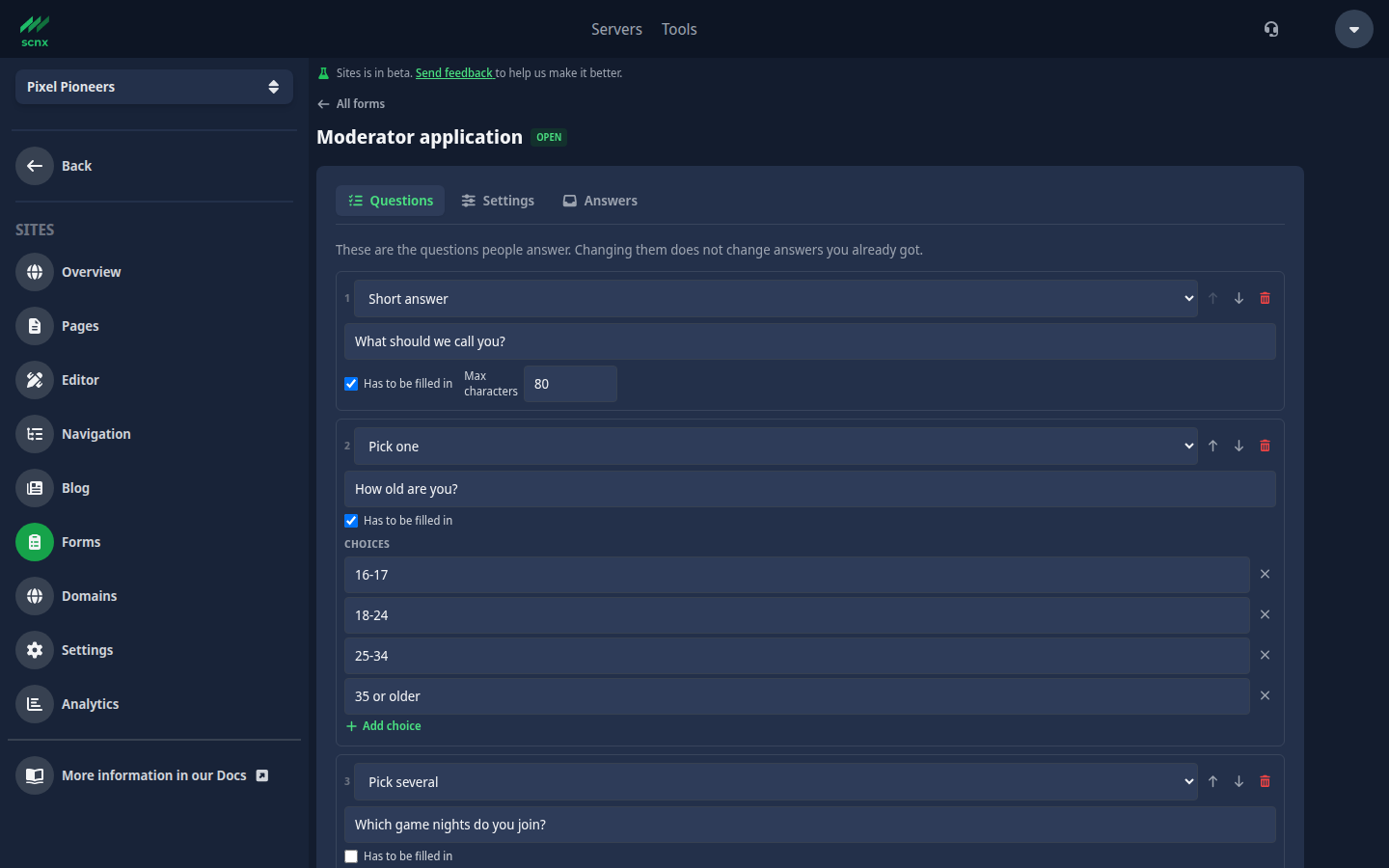
- Open your site in the dashboard and go to Forms.
- Click New form, give it a name (for example "Application form") and click Create form. Your new form opens right away, with one starter question.
- On the Questions tab, click Add question for each thing you want to ask, then click Save questions.
- Add the form to a page: open the page in the Editor, add a Form block, and pick your form in the block's Form option. Then publish your site.
A form only shows up on your site once you add a Form block to a page and pick it there. If you haven't built a form yet, the block's picker links you to Forms with Create one in Forms.
The Form picker in the block also tells you when something is off with the form you picked:
- A form you have closed shows "(closed)" after its name, for example "Application form (closed)". The block stays on your page, and visitors see that the form is closed. See Opening and closing a form.
- A form you have deleted shows as "Deleted form" followed by a code. Visitors see "This form isn't available right now." Pick another form or remove the block, then publish.
The Form block also has two optional texts of its own: Submit button (the button label) and Thank-you message (what visitors see after sending). If your site's footer has a Discord link, a Join us on Discord link shows under the thank-you message too.
Each form has three tabs: Questions, Settings and Answers. Click All forms to go back to the list.
Question types
Each question has a Type:
| Type | What the visitor sees |
|---|---|
| Short answer | A single-line text box. |
| Long answer | A multi-line text box for longer replies. |
| Pick one | Choose a single option from a list you define. |
| Pick several | Tick any number of options from a list you define. |
| Yes / No | A simple yes-or-no choice. |
For each question you can set whether it Has to be filled in, and a Max characters limit for text answers. Pick one and Pick several questions need at least one choice, and every choice has to be different. Use the arrows to move a question up or down.
Changing the questions does not change answers you already got. Each answer keeps the question text it was given under.
The builder shows how much answer space your questions use. If the total gets too high, shorten a question's limit or remove one. The number counts characters, but the limit when someone actually sends the form counts bytes. Characters like Cyrillic, Japanese or emoji cost 2 to 4 bytes each, so leave a little room if your audience writes in those.
The form name, your questions, the choices and the consent text are checked by our automatic content moderation when you save. If something is rejected, you'll see why and nothing is saved. The answers visitors send are never moderated by us.
Bot protection
Every form on your site has a spam check built in. You can't switch it off, but you can choose how it looks for your visitors. Go to Settings and find the Bot protection card:
- Invisible check (recommended) - most visitors see nothing at all. Only someone who looks like a bot might be asked to prove they aren't.
- Visible puzzle - visitors are usually asked to complete a short puzzle before they can send a form.
The choice applies to every form on your site and takes effect right away. You don't need to set up an account or any keys, we handle that.
The check runs alongside a few other protections that are always on: a hidden trap field that bots fill in and people don't, a short minimum time before a form can be sent, and a limit on how many answers one visitor can send to the same form in a short time. If the check service itself is down, forms keep working with those other protections, so your forms never break because of it.
If a visitor's ad or script blocker stops the check from loading, they get a message asking them to try again or allow your site in their blocker.
Consent checkbox
In a form's Settings tab you can add a Consent checkbox text (optional). When you fill it in, visitors see a checkbox with exactly that text and have to tick it before they can send the form.
Leave it empty for most forms. A contact form or an application doesn't need a general "I agree" box. Use it only when you need separate permission for something extra, for example a newsletter or sharing the answers with someone else.
When someone ticks the box, we save the exact text they agreed to with their answer. If you change the text later, older answers still show the wording that person actually saw. You find it in the Consent column of the CSV export.
Opening and closing a form
Each form has an Accept answers checkbox in its Settings tab:
- On - the form accepts answers ("Open").
- Off - the form is closed ("Closed"). Instead of the questions, visitors see the form's name and "This form is currently closed."
You can also set an Answer limit. Once the form has collected that many answers, it stops accepting new ones on its own. Visitors then see "This form is no longer accepting responses." Leave it empty for no limit.
Click Save settings after changing anything on this tab.
Forms only accept answers while your site is published and not in maintenance mode. In the editor's preview you can see a form, but you can't send it.
The answers inbox
Every answer lands in the form's Answers tab, newest first. In the forms list, a New badge shows which forms got answers since you last opened their inbox, and each form shows how many answers it has.
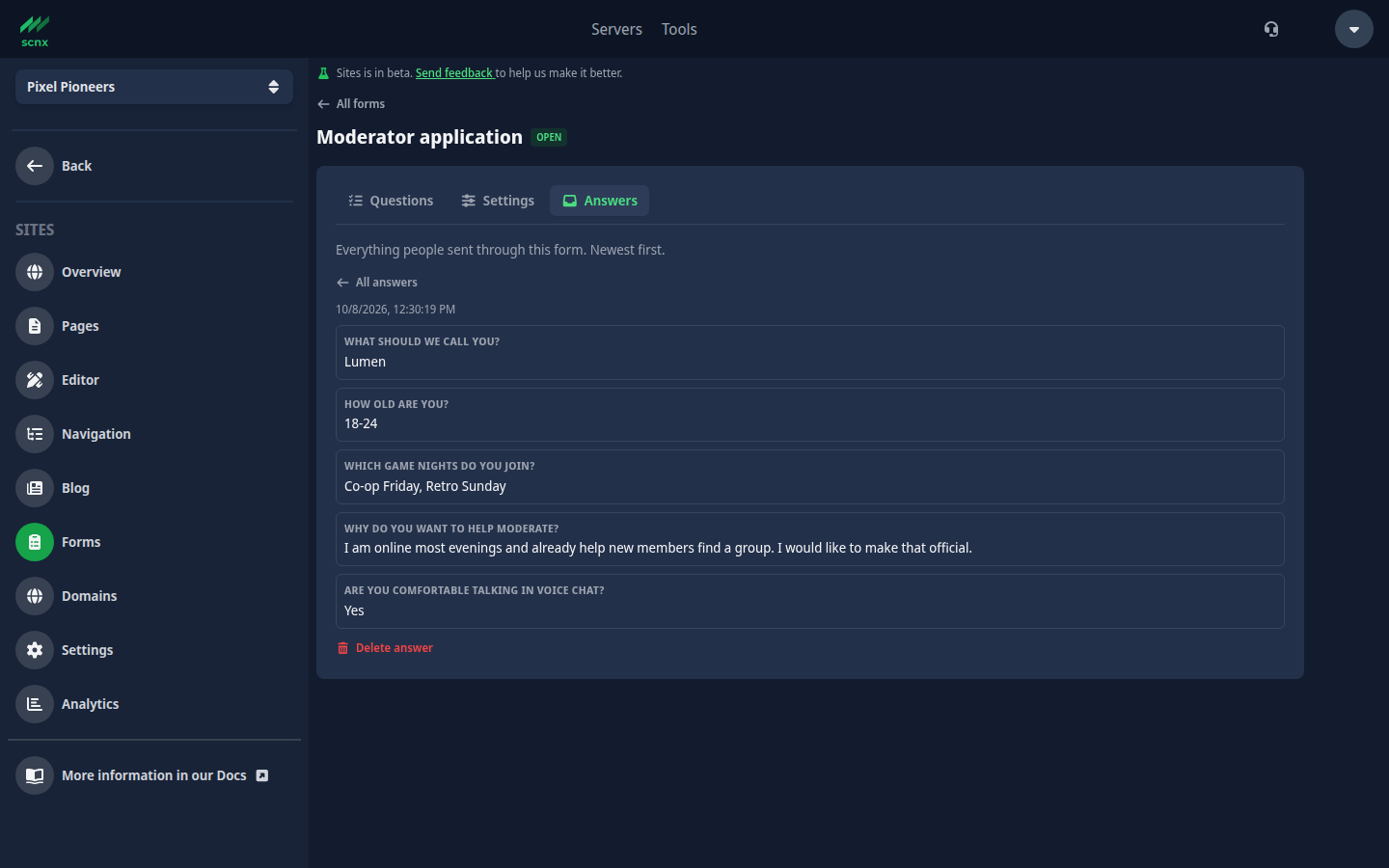
- Click an answer to read it in full, and All answers to go back.
- Move between pages of answers with Newer and Older.
- Delete a single answer with Delete answer, or all of a form's answers with Delete all answers.
The New badge is remembered by your browser, not your account. A teammate, or you on another device, can still see it for answers you already read.
Deleting answers, and deleting a whole form, need admin access to the site. If you don't have it, the delete buttons don't show and you see a note instead. Ask someone on your team who has it.
How long answers are kept
Answers are not kept forever. Each form has a Keep answers for (days) setting, which defaults to 90 days. Once a day, we automatically delete every answer older than that. You can raise or lower it within the range shown next to the field.
The setting applies to answers you already have, too. If you lower it, older answers are deleted with the next daily cleanup.
Deleting the whole form with Delete form deletes every answer it collected along with it. None of this can be undone.
Exporting to CSV
On a form's Answers tab, click Download as CSV to get the answers as a spreadsheet file. This is handy for sorting applications or sharing them with your team outside SCNX.
The file has a Submitted at column, a Consent column (the text the visitor agreed to, or "(no consent requested)"), and one column per current question. Answers to questions you have since removed don't appear in the file.
Once you download the file, it is yours to look after. Our automatic deletion can't reach copies outside SCNX.
Discord notifications
You can get a message in Discord every time someone sends a form. In the form's Settings tab, paste a webhook link into the Discord notification field. It looks like https://discord.com/api/webhooks/123.../abc..., and we post every new answer into that channel.
To get a webhook link: in Discord, open your channel's settings, go to Integrations → Webhooks, create a webhook and copy its URL. Only real Discord webhook links are accepted. Leave the field empty for no notification.
A few things to know:
- Very long answers are shortened in the Discord message. The full answer is always in your Answers tab.
- Mentions in answers, like
@everyone, never ping anyone. - Every message ends with a note that the content was written by a visitor and not moderated by SCNX.
- If Discord is unreachable, that one notification is skipped. The answer is still saved.
- Messages in Discord are not covered by the retention setting. If you need answers gone after a while, delete them in Discord too, or post them into a channel only a few people can see.
Privacy and your responsibilities
When you collect answers through a form, you decide what to ask and what happens with the answers. That usually makes you responsible for them under data protection law, not SCNX. Here is what we do and what is up to you.
What we store
For each answer, we store only:
- the answers the visitor typed, encrypted,
- the consent text they agreed to, if your form has a consent checkbox,
- the time it was sent.
We don't save an IP address, device information or any visitor identifier with an answer.
Two things do use the visitor's connection without being saved with the answer:
- The spam check. The visitor's browser loads the check directly from the check provider: Cloudflare Turnstile for Invisible check, hCaptcha for Visible puzzle. When the form is sent, we pass the visitor's IP address to that provider so it can verify the check. The provider handles that data under its own terms.
- Rate limiting. We use the visitor's IP address for a short time to limit how many answers one visitor can send. It is only kept in memory and never written to our database.
What visitors see
Below every form, visitors see a short notice saying who gets their answers and how long they are kept: "Your answers go to the operators of <site name> and are deleted after <days> days." If you have added a privacy policy and a contact for data questions, the notice links them too.
What you should take care of
- Link your privacy policy. Go to Settings and fill in the Legal information card. Your Privacy policy shows in your site's footer and next to every form. Your Contact for data questions (an email address or a link) shows next to your forms only, never in the footer. We don't write these texts for you, so link to what you already have. Changes here take effect right away, without publishing again.
- Mention the spam check in your privacy policy if your policy lists the services your site uses.
- Only ask for what you need, and keep the retention as short as works for you.
- Look after copies. Answers you export as CSV or receive in Discord are outside our automatic deletion.
- Handle requests from visitors, for example someone asking you to delete their answer. You can delete single answers in the inbox.
If your site has at least one form and no privacy policy linked, we remind you on the Forms page and when you publish. It's only a reminder: you can still publish without one.
What is live and what needs publishing
Forms themselves are live. Their questions and settings take effect right away, and so do your Bot protection choice and your Legal information. You do not have to publish your site again after changing a form, opening or closing it, or editing its questions.
The Form block is part of your page, though. Adding the block to a page, removing it, or changing its Submit button or Thank-you message text shows up on your live site after you publish.
If you delete a form that is still placed on a page, the block stays, the picker shows "Deleted form", and visitors see "This form isn't available right now." Remove the block or pick another form, then publish.