Settings
SCNX Sites is in active beta, and we're changing a lot of things as we go. We'll be reworking this documentation once the current beta cycle wraps up, so some details on this page may be outdated in the meantime.
You find Settings in the Sites menu in your server's dashboard, next to Overview, Pages, Editor, Navigation, Blog, Forms and Domains.
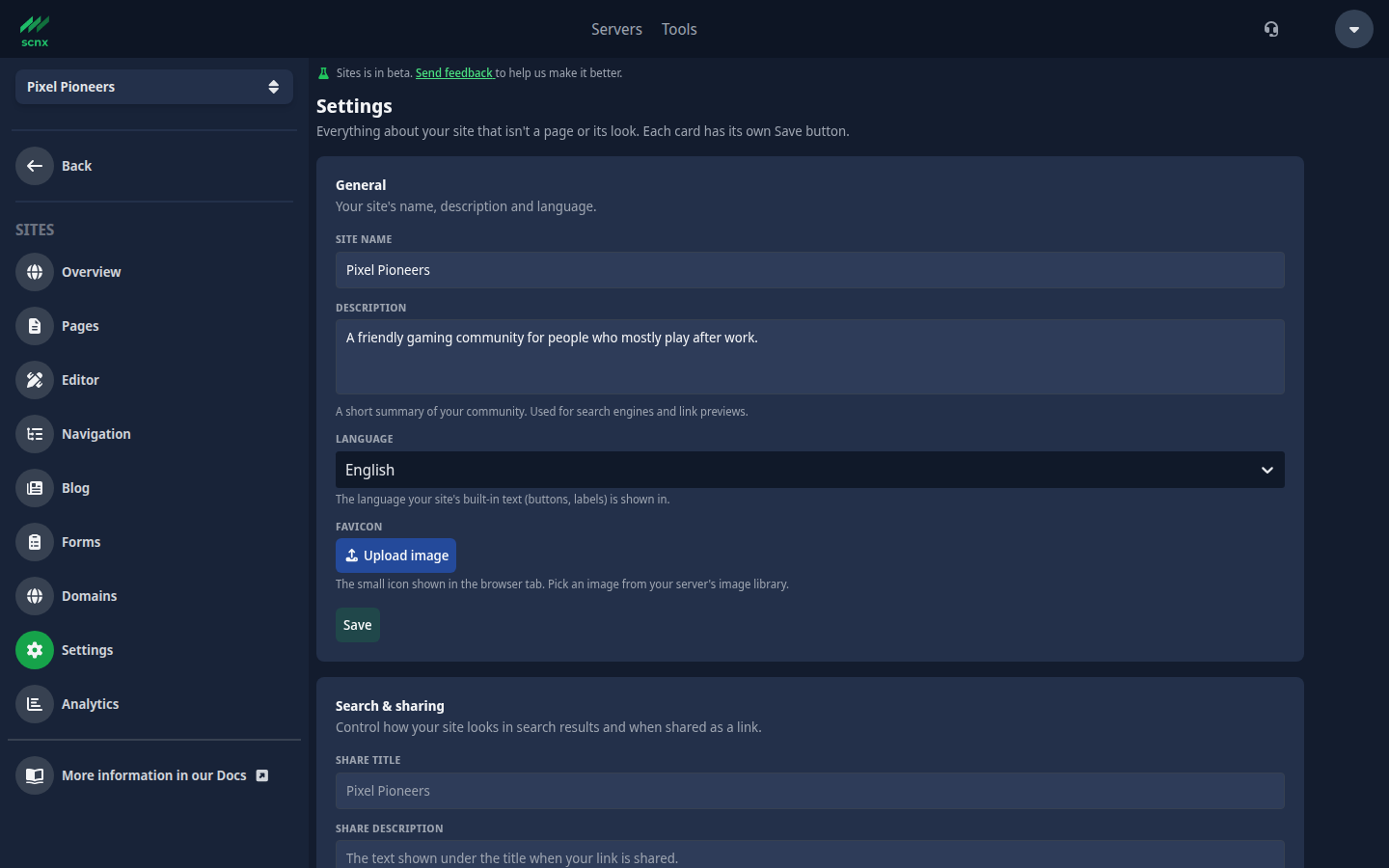
Settings holds everything about your site that is not a page and not its look. It is split into cards, in this order: General, Search & sharing, Legal information, Bot protection, Maintenance mode, Branding and Danger zone.
Each card has its own Save button, so nothing changes until you save that card. Everyone with access to the site can open this page. Changing a card needs edit access, and deleting the site needs admin access.
General and Search & sharing are part of your site's draft. After you save them, your changes reach visitors with your next publish. Everything else on this page, including the share card switch, takes effect as soon as you save. See what needs a publish and what is live for the full list.
General
- Site name: the name of your site, used in the browser tab and in link previews.
- Description: a short summary of your community, used for search engines and link previews.
- Language: the language of your site's built-in text, like buttons and labels. You can pick English or Deutsch. Your own content stays exactly as you wrote it.
- Favicon: the small icon in the browser tab. Pick an image from your server's image library. If you do not set one, your site uses your Discord server's icon.
Search & sharing
This card controls how your site looks in search results and when someone shares a link to it, for example on Discord or Twitter/X.
- Share title: the title in link previews. If you set one, it is used for every page. Leave it empty and each page uses its own page title. Blog posts always use their own title.
- Share description: the text under the title. Leave it empty and your site's Description is used.
- Share image: the preview image. Pick one from your server's image library.
- Enable site search: adds a search box to your navbar and blog and a
/searchpage, so visitors can search your published pages and posts. It is on for new sites and off for sites that existed before. It cannot be turned on while a page or redirect uses/search. See Site search.
Below these fields is a switch for the generated share card. When it is on and you have not set a Share image, we create a preview image for you: a wide card with your site name, description and server icon, in your theme's colours and heading font. It updates by itself when any of those change, so you never have to remake it.
If you turn the switch off, shared links use your Share image if you set one, and otherwise your server's icon. This switch is live and does not need a publish.
Found by search engines
You don't need to set anything up for search engines like Google. Once your site is published, it automatically has:
- a sitemap at
/sitemap.xml: a list of all your pages and published blog posts that search engines read to find them. Your pages appear in it in the order you set on the Pages screen. - a robots.txt at
/robots.txt: a short file that tells search engines what they may look at. It allows your whole published site.
Your drafts stay out of search results. Preview links are marked so search engines don't list them, and a site that is not published yet or is in maintenance mode asks search engines to stay away.
Legal information and Bot protection
Legal information is where you link your privacy policy, your imprint and a contact for data questions. Bot protection lets you choose how the spam check on your forms looks to visitors. Both matter most once your site has a form, so they are explained on the Forms page. Both take effect right away.
The Imprint field is for a link to your imprint: a page that says who runs the website and how to reach them. Some countries, Germany for example, require one for many websites. We don't write it for you, so link a page you already have. It has to be a full link that starts with https://. Your imprint shows up as a link in your site's footer, next to your privacy policy. Whether your site needs an imprint is explained on Content rules & legal.
Maintenance mode and Danger zone
Maintenance mode temporarily replaces your whole site with a short notice. Danger zone is where you delete your site. Both are explained on Publishing & going live.
Branding
The Branding card tells you whether your footer shows the small SCNX line, the SCNX logo with the words "This site runs on SCNX". It reads SCNX line shown or SCNX line hidden. There is nothing to set here: it follows your server's plan automatically. Our Professional plan and our Enterprise plan hide the line. A plan change reaches your site within a few minutes, without a publish.
The Report abuse button stays in your footer on every plan. See Branding.