Message Editor
The Message Editor is a visual tool on the SCNX Dashboard that lets you compose rich Discord messages with text, embeds, images, buttons, select menus, and more — without writing any code. It is used across multiple features, including Bot Log-In, Custom Commands, module configurations, and Support Bot message configurations.
Overview
The Message Editor is available in two versions:
- V3 (Embed-based) — The classic editor using Discord's traditional embed system with plain text, up to 10 embeds, and interactive components.
- V4 (Components V2) — The new editor built on Discord's Components V2 system with drag-and-drop component reordering, containers, sections, media galleries, and more.
Both editors include a live preview, parameter insertion, copy/paste, and message sharing.
V4 is currently in beta and rolling out gradually. The V3 editor will remain available indefinitely — you are never forced to switch to V4.
| Phase | Date | Servers |
|---|---|---|
| Phase 1 | March 17, 2026 | 5% of servers |
| Phase 2 | March 31, 2026 | 15% of servers |
| Phase 3 | April 14, 2026 | 25% of servers |
| Phase 4 | April 21, 2026 | 40% of servers |
| Phase 5 | April 28, 2026 | 50% of servers |
| Full rollout | May 5, 2026 | 100% of servers |
Servers are selected randomly in each phase — there is no way to check or predict which phase your server will be included in.
Don't want to wait? ScootKit Members (Level 2+) get instant access to the V4 editor.
V3 Editor (Embed-based)
The V3 editor is the default message editor. It lets you build messages using Discord's traditional embed format.
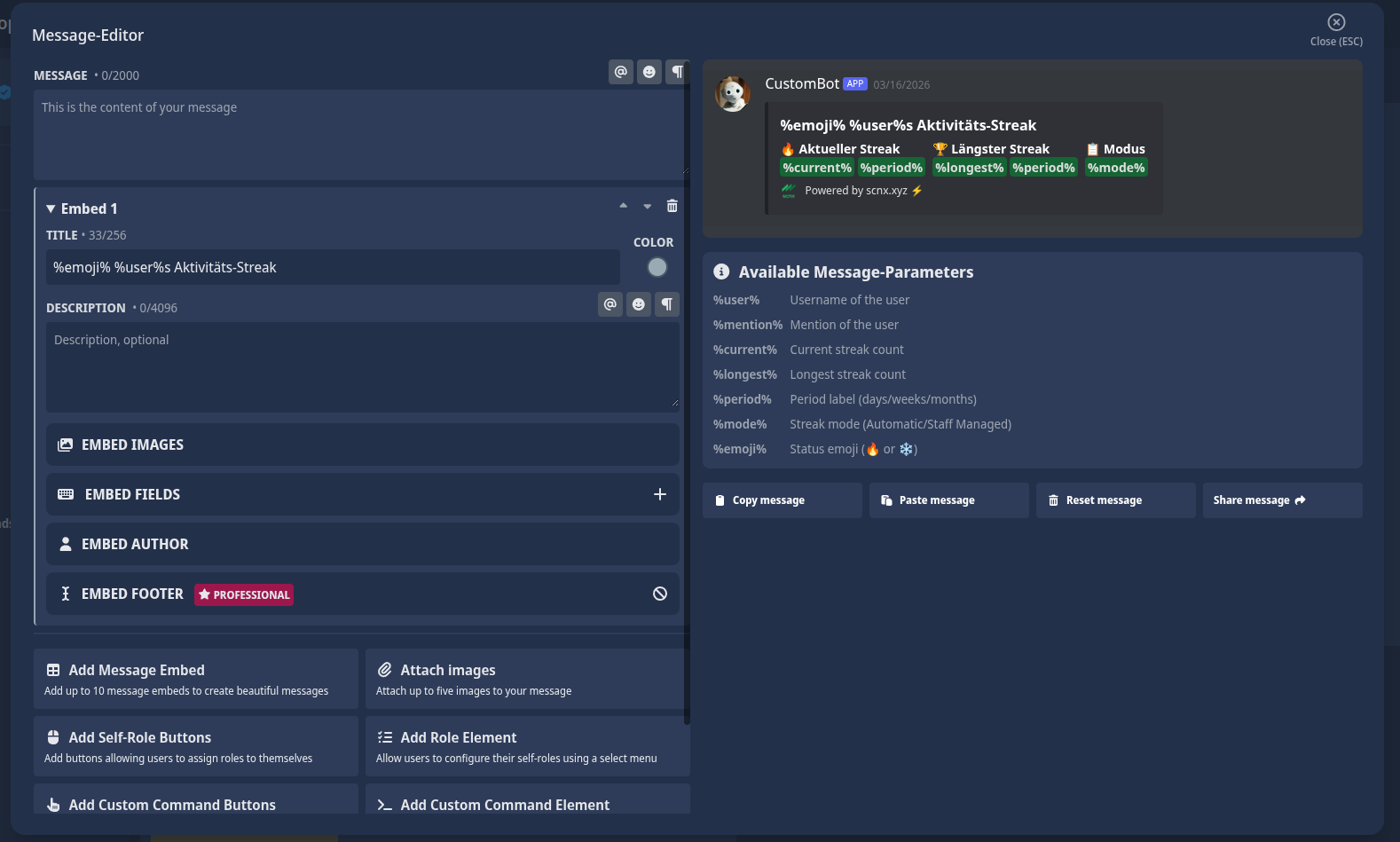
Message content
Write plain text in the Message field. This is the main text content of your message, displayed above any embeds. Supports Discord markdown formatting.
Embeds
Add up to 10 embeds to your message. Each embed can include:
| Field | Description |
|---|---|
| Title | Bold title text at the top of the embed |
| Description | Main body text (supports Discord markdown) |
| Color | Accent color shown on the left side of the embed |
| Author | Author name and optional icon displayed above the title |
| Fields | Key-value pairs displayed in the embed body; can be inline |
| Image | Large image displayed at the bottom of the embed |
| Thumbnail | Small image displayed in the top-right corner |
| Footer | Small text at the bottom with optional icon |
Use the color picker or enter a HEX color code directly to set the embed accent color.
Interactive components
- Link Buttons — Open a URL when clicked (up to 5).
- Self-Role Buttons — Add, remove, or toggle a role when clicked (up to 5). Customizable styles: Primary, Secondary, Success, Danger.
- Custom Command Buttons — Trigger a Custom Command with a Button trigger when clicked.
- Custom Command Dropdown — A select menu that triggers a custom command when an option is selected.
- Self-Role Dropdown — A select menu that lets users assign roles to themselves.
Image attachments
Attach up to 5 images to your message, displayed below the message content and embeds.
Dynamic image generation
Generate a custom image for each message sent. The image is displayed in the first embed or as an attachment. Use the Image Editor to design it with text elements, custom images, and backgrounds.
V4 Editor (Components V2)
The V4 editor uses Discord's Components V2 system. Instead of embeds, you build messages from a flat list of components that can be nested inside containers. You can add up to 40 components per message, and reorder them via drag-and-drop.
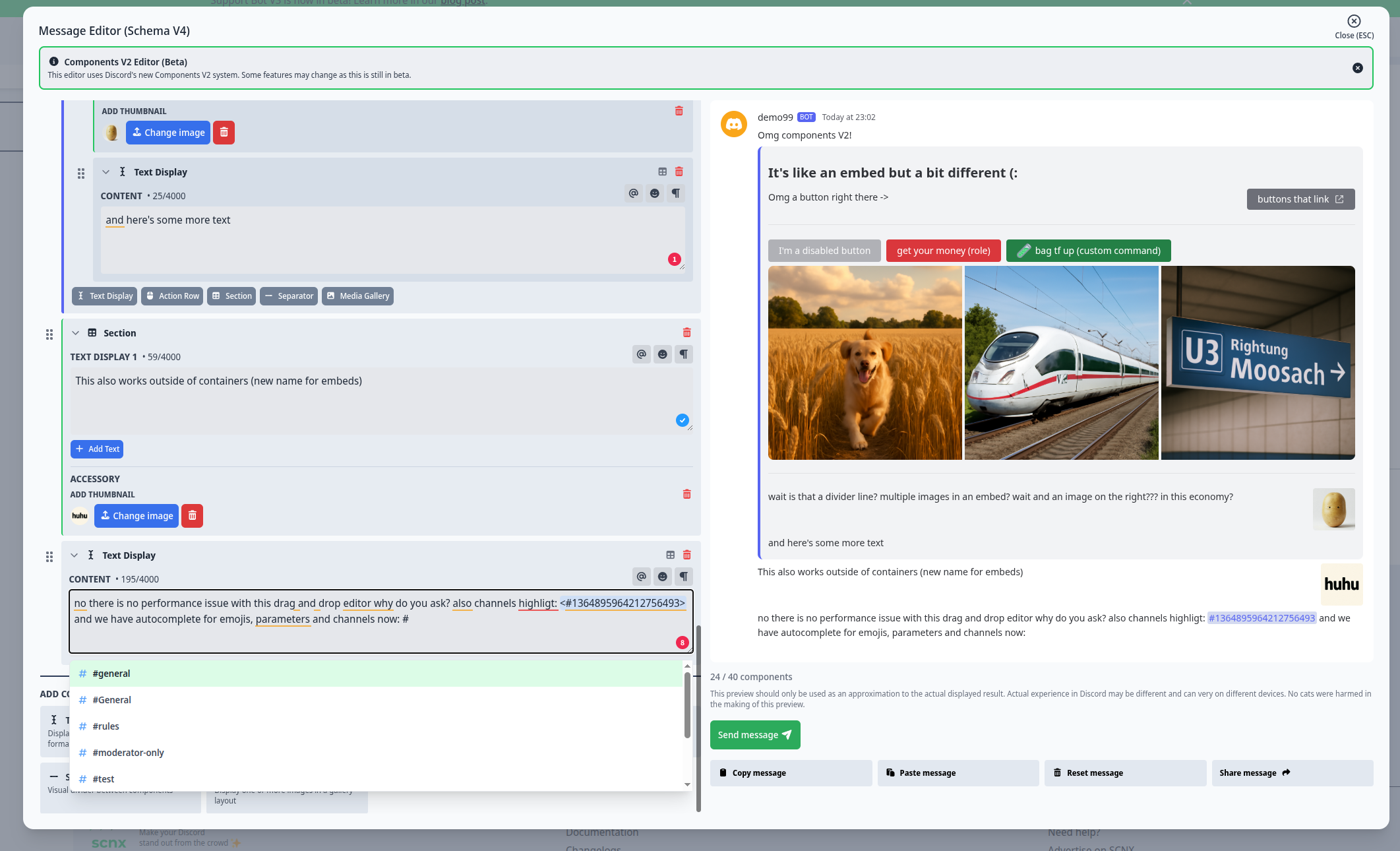
Available components
| Component | Description |
|---|---|
| Text Display | Standalone text block with Discord markdown (up to 4,000 characters). Can be converted to/from a Section. |
| Container | Groups components together with an optional accent color. Cannot be nested inside other containers. |
| Section | 1–3 text items with an accessory (Button or Thumbnail). Great for pairing text with a small image. |
| Action Row | Row of up to 5 Buttons or 1 Dropdown Menu. Cannot mix buttons and dropdowns. |
| Media Gallery | Displays 1–10 images in a grid layout, each with optional alt text (up to 1,024 characters). |
| Image | A single uploaded image. |
| Separator | Visual divider with configurable spacing (Small / Large) and optional divider line. |
| Dynamic Image | Places a dynamically generated image. Can be at the top level or inside a Container. |
Buttons
Buttons live inside an Action Row or as a Section accessory. Each button has an action type:
| Action type | Description |
|---|---|
| Self-Role | Adds, removes, or toggles a role when clicked |
| Link | Opens a URL (always uses Link style) |
| Custom Command | Triggers a Custom Command with a Button trigger |
| Disabled | Non-interactive button (useful as a visual label) |
Each button can have a label (up to 80 characters), an emoji, and a style (Primary/Blurple, Secondary/Grey, Success/Green, Danger/Red, or Link).
Dropdown menus
A select menu inside an Action Row with up to 25 options (each with label, optional description, and emoji). Options can be reordered via drag-and-drop. Two action types are supported:
- Custom Command Dropdown — Each option triggers a Custom Command when selected.
- Self-Role Dropdown — Each option assigns a role. Supports configurable min/max selection counts.
Converting from V3 to V4
You can convert a V3 message to V4 using the "Convert to V4 Editor" button in the V3 editor toolbar (if V4 is enabled for your server).
| V3 element | V4 component |
|---|---|
| Message content | Text Display |
| Embed | Container with nested components |
| Embed title / description / fields | Text Display (inside Container) |
| Embed thumbnail | Section with Thumbnail accessory |
| Embed image | Media Gallery |
| Embed footer | Separator + Text Display |
| Link / Self-Role / Custom Command Buttons | Action Row with Buttons |
| Custom Command Dropdown | Action Row with Dropdown Menu |
| Self-Role Dropdown | Action Row with Role Select |
This conversion is one-way — you cannot convert back to V3. The following features cannot be migrated: author icons, footer icons, and embed timestamps.
Common features
These features are available in both the V3 and V4 editors.
Parameters
Insert dynamic parameters into text fields using the parameter selector button. Parameters like %userTag% or
%guildName% are replaced with actual values when the message is sent. Available parameters depend on the context.
Copy and paste
Use "Copy message" to copy the entire message. Paste it into any other message editor field on SCNX using "Paste message". Pasting overwrites existing content.
Share message
Create a unique sharing link using "Share message". The link is a snapshot — future changes won't be synced.
Shared messages may contain harmful content. Only import messages from sources you trust.
Live preview
Both editors show a real-time preview of how your message will look in Discord.
The preview is an approximation. Actual appearance may differ depending on the platform and device.
Troubleshooting
My message won't save / shows validation errors
The editor validates your message before saving. Common issues:
- Empty text displays or embeds — add content or remove the empty component.
- Buttons missing a label or emoji — every button needs at least one.
- Self-role buttons without a role selected — pick a role or remove the button.
- Custom command buttons without a command linked — select a custom command or remove the button.
- Link buttons with an invalid or missing URL — add a valid URL starting with
https://. - Too many components — V4 messages are limited to 40 total components.
I don't see the V4 editor option
The V4 editor is rolling out gradually. Check the rollout schedule above. ScootKit Members (Level 2+) get instant access.
I converted to V4 and some content is missing
Author icons, footer icons, and embed timestamps cannot be migrated and are lost during conversion. See the conversion table for details.
Buttons or select menus don't work after sending
- Make sure the linked Custom Command is enabled and has a Button trigger.
- For self-role buttons, ensure the bot's highest role is above the roles it's managing and that the bot has the Manage Roles permission.
- Check that the bot has the necessary permissions in the channel.