Permissions & Slash Commands
Discord provides a centralized system for managing Slash Commands. This system allows server administrators to control permissions for bots and their commands in detail.
Because of the underlying permission logic, it is necessary to define which actions bots and users are allowed to perform. This guide explains how to configure these permissions for your bot.
Configuring Custom Bot Permissions
Open the Command Permissions Menu
To manage permissions for Slash Commands:
- Open Server Settings
- Navigate to Integrations → Bots & Apps
- Select the desired bot
- Click Manage
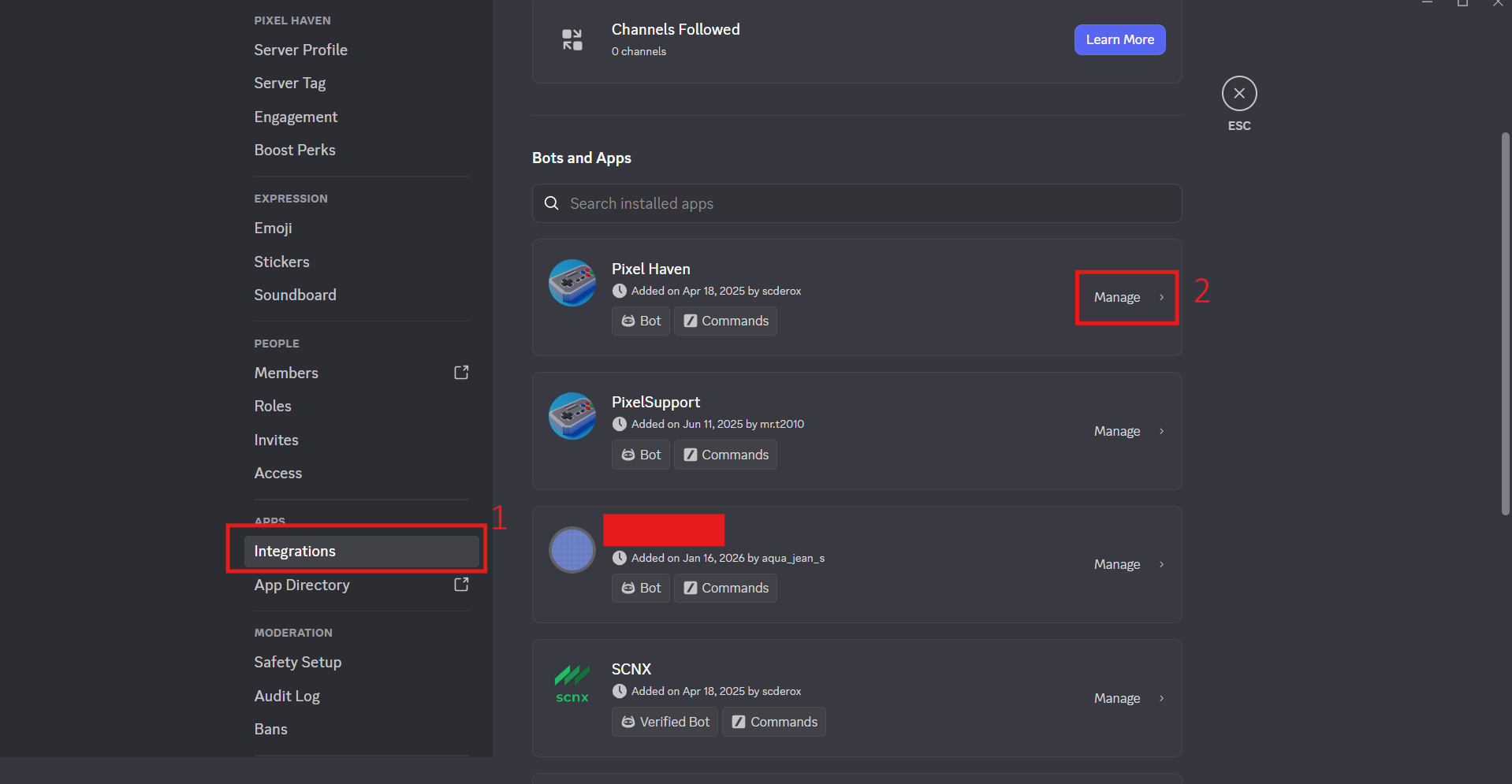
Manage Permissions
After opening the bot menu, an overview of the available Slash Commands is displayed.
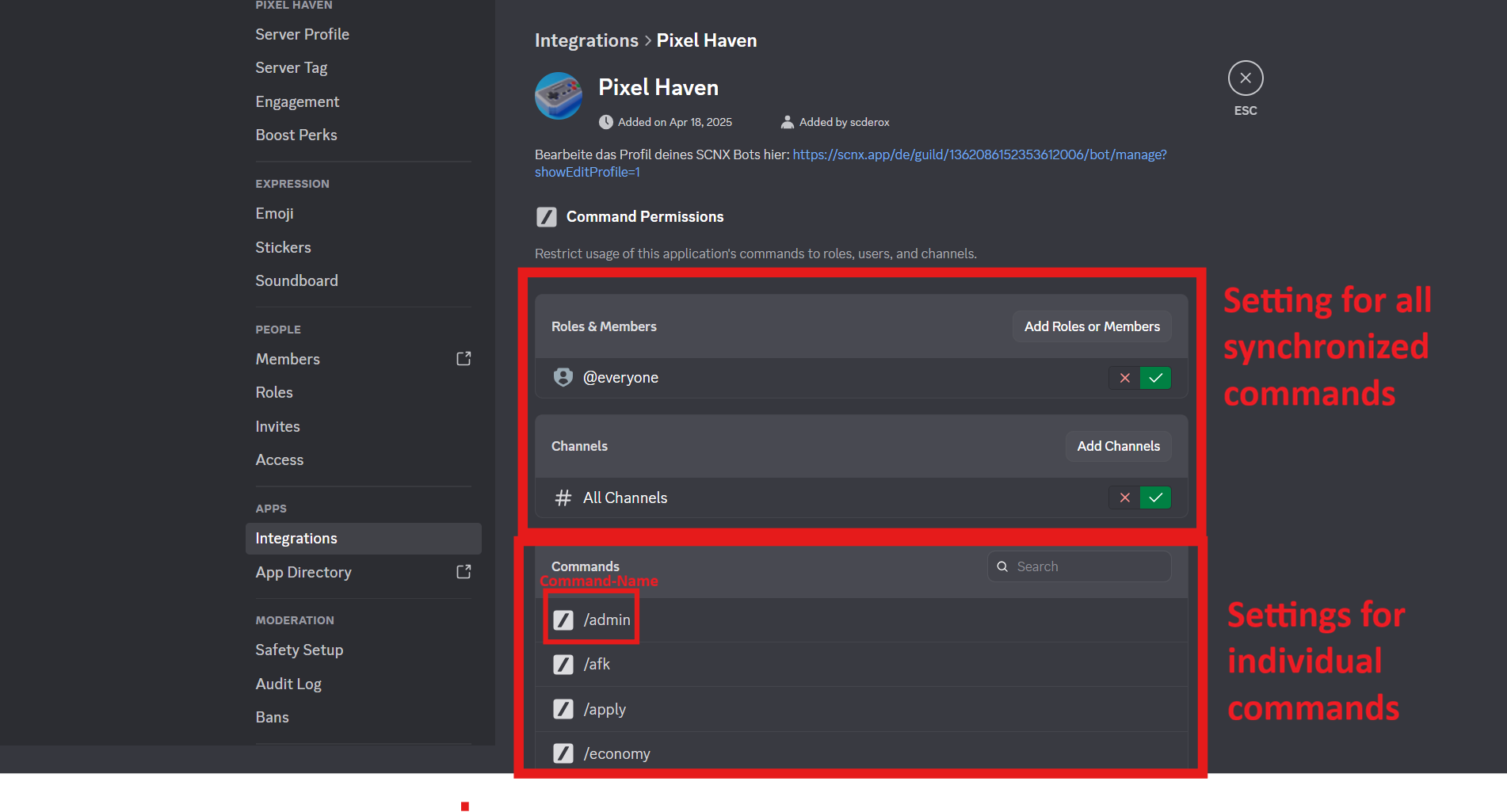
Configure Individual Commands
Select any Slash Command to open the permissions configuration menu.
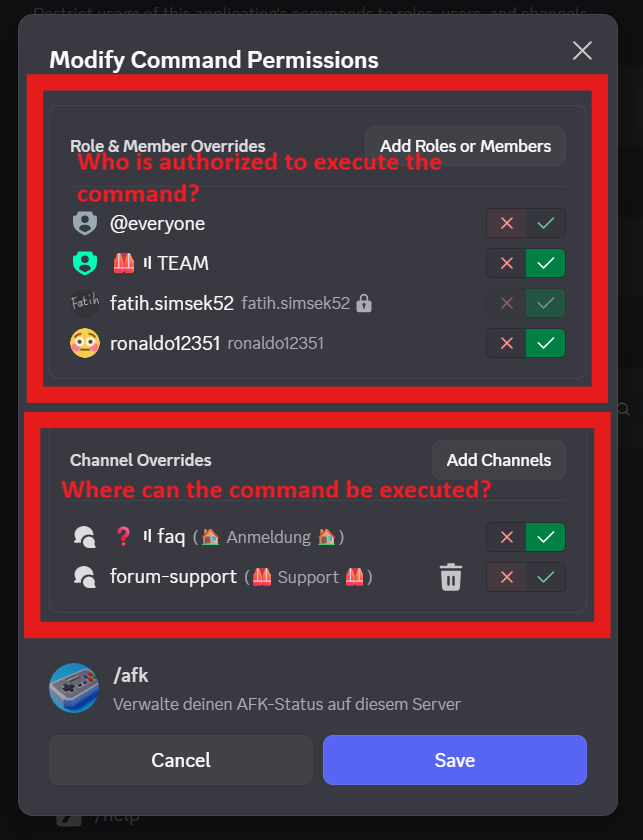
For each command, you can specify:
- Which roles are allowed to execute it
- Which users have access
- In which channels the command can be used
For most commands, the bot does not perform additional permission checks
(with some exceptions, e.g. /moderate).
Any user granted execution rights here can use all subcommands of this command without further restrictions.
Permissions should therefore be assigned carefully.
Default Command Permissions
Some Slash Commands require specific Discord server permissions by default.
If a command has required permissions (for example Moderate Members), only members with these server permissions can use the command initially.
Discord will display a notice such as:
- "Members need server permissions to use this command."
These default permissions apply until they are explicitly overridden by assigning roles or users in the command permissions menu.
This ensures that sensitive commands remain restricted unless access is intentionally granted.
Command Synchronization
Discord allows managing permissions for multiple commands at once:
- Synchronized commands inherit identical settings
- Individual commands can be excluded from synchronization manually
- Commands that cannot be synchronized can still be configured individually
Using the Custom Bot
Permissions for Slash Commands can be configured directly through the bot menu, without needing to re-upload commands to Discord. All available options for assigning permissions can be set within the interface described above.
Questions or Support
If you need assistance, you can open a support ticket in the #support channel on Discord. We are happy to help.
More information from Discord: https://discord.com/blog/slash-commands-permissions-discord-apps-bots