Values, variables & messages
Custom Commands V3 is in active beta, and we're changing a lot of things as we go. We'll be reworking this documentation once the current beta cycle wraps up, so some details on this page may be outdated in the meantime.
Steps work with values: a member, a channel, a number, a piece of text, a message. Every input of a step needs a value, and most steps give new values back that later steps can use. Passing values from one step to the next is what turns a list of steps into a flow that reacts to what actually happened.
Where values come from
When you click Use value on an input, the Data tab of the panel lists every value you can use at that point, grouped by where it comes from:
| Group | What it holds |
|---|---|
| Trigger | The values your trigger gives, like the new member, the message or the interaction. Slash command options are here too. |
| Steps | The values earlier steps gave back, like "Sent message" of a Send message step, labelled with their step number. |
| Flow inputs | The parameters another flow passes in, for flows with a Manual trigger or Scheduled run. |
| Module settings | The settings of the module this flow belongs to. Only in modules. |
| Storage | Your storage fields. Picking one adds a step before this one that reads it. |
Instead of a value from the flow, an input can also have a Fixed value: a channel you pick, a number or text you type, a color, a duration. A fixed value is the same on every run. See Fixed values.
Which values you can use where
- A value is only available below the step that makes it. The Data tab only offers values from steps above the input you're filling.
- Values made inside a branch stay in that branch. A step inside If true can't give its result to a step below the If, because that step also runs when the condition was false.
- Loop values stay in the loop. The current item of a For each item loop, or the round number of a Repeat, only exists for the steps inside it.
- Module settings and storage fields stay in their module. Flows outside a module use the server's own storage fields.
If you move a step so that one of these rules breaks, the editor asks first and lists the inputs it would clear. Inputs that end up with a missing value show Connection lost, and the Issues tab says why, for example "A value is used before the step that produces it."
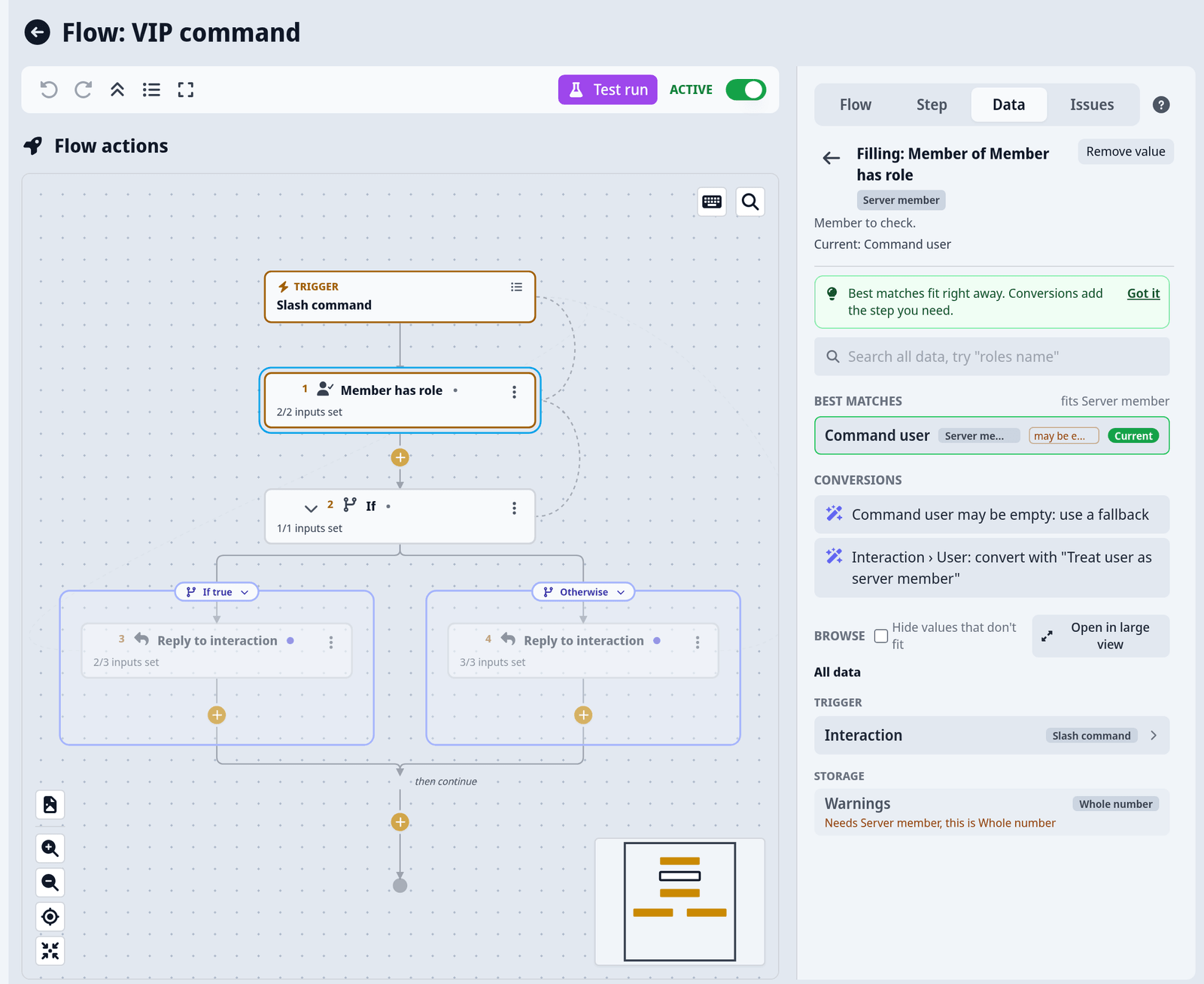
Pick a value
- Click a step and find the input in the Step tab.
- Click Use value. The Data tab opens, headed "Filling:" and the input's name.
- Click Use on the value you want, or open it to pick one of its fields.
The Data tab shows Best matches first: the values that fit the input right away. Below them, Browse shows everything else.
- Search across all values, for example "roles name".
- Open a value to see its fields. A member has fields like Display name, Mention, Roles and Joined at. Pick a field to use just that part.
- Conversions suggest a step that turns a value into what the input needs, like joining a list into text. Picking one adds that step for you.
- Values that don't fit the input are hidden. Turn off Hide values that don't fit to see them and why they don't fit.
To change a value later, open the input's menu: Change value picks another one, Use a fixed value instead and Use a text template instead switch the kind, and Remove value clears it. Every change can be undone with Ctrl+Z.
Lists
Some values are lists, like the roles of a member. When you open a list, you can pick All items, the First item, the Last item or an item by number (Item #). To do something for every item, use a For each item step. To show a list as text, Conversions offers to join its items with commas.
Values that may be empty
Some values are marked may be empty, for example the member of an interaction that happened in a DM, or a slash command option that isn't required. When you use one in an input that needs a value, the editor shows May be empty and offers three ways to handle it:
| Choice | What it does |
|---|---|
| Use a fallback value | Adds a Use a fallback when empty step, where you set what to use instead. |
| Only run this and the following steps if the value is set | Wraps the step and everything below it in If it has a value. |
| Ignore - an empty value is fine here | Keeps it as it is. Use this when you know the value is always set, for example a member in a command that isn't allowed in DMs. You find ignored warnings again under Ignored in the Issues tab. |
If you ignore it and the value is empty after all, the step fails when the flow runs.
Some values can also be one of several kinds, like an option that takes either a user or a role. Switch on kind runs a different branch for each kind, or the Issues tab offers to use only the kind that fits.
Every type of value and its fields are listed on Value types.
Fixed values
Click Fixed value on an empty input, or Use a fixed value instead in its menu. What you get depends on the input:
| Input type | How you fill it |
|---|---|
| Text | Type it. Press Enter for a real line break. |
| Numbers | Type a number. Some inputs show a Min and Max. |
| Yes/No | Choose Yes / enabled or No / disabled. |
| Channel, role, member | Pick it from your server. If the list doesn't load, you can paste a Discord ID instead. Pasting a mention or link works too: "We read the ID out of what you pasted." |
| Duration | A number and a unit: Seconds, Minutes, Hours or Days. |
| Date & time | Pick it. It uses your local timezone. |
| Color | Pick it, or type six hex digits like #5865f2. |
| Choice from a list | Pick one of the values. |
| List or lookup table | Click Add entry for each item. A lookup table also needs a Key per entry. |
| Message | Opens the message editor. See Values in messages. |
| Modal | Opens the modal editor with a Modal title and Modal fields. |
Some inputs only take a value from the flow, and say "This input only takes a value that an earlier step produced." If a channel or role you picked was deleted on Discord, the input shows "doesn't match anything on this server". Pick it again.
Put values into text
Many inputs take text, like a nickname, a channel name or a reason. To mix fixed text with values:
- Type your text into the input as a fixed value.
- Where a value should go, click Insert a value and pick it.
- The value appears as a chip inside your text. Backspace removes the whole chip.
If the input already uses a value from the flow, open its menu and choose Use a text template instead first.
Only values that can be shown as text fit into text: text, numbers, IDs, links and yes/no values. For a member, a channel or a role, open it and pick a field, like Display name or Mention. Dates have to be turned into text first, for example with Format Discord timestamp, which shows them in every reader's own timezone.
The text is put together when the step runs. If a value is empty at that moment, that spot stays empty.
Values in messages
Steps that send or edit a message, like Send message, Reply to interaction or Send direct message, have a message input. Click it to open the message editor, the same one you know from the rest of the dashboard. You can write text, add embeds, use the component layout and add buttons.
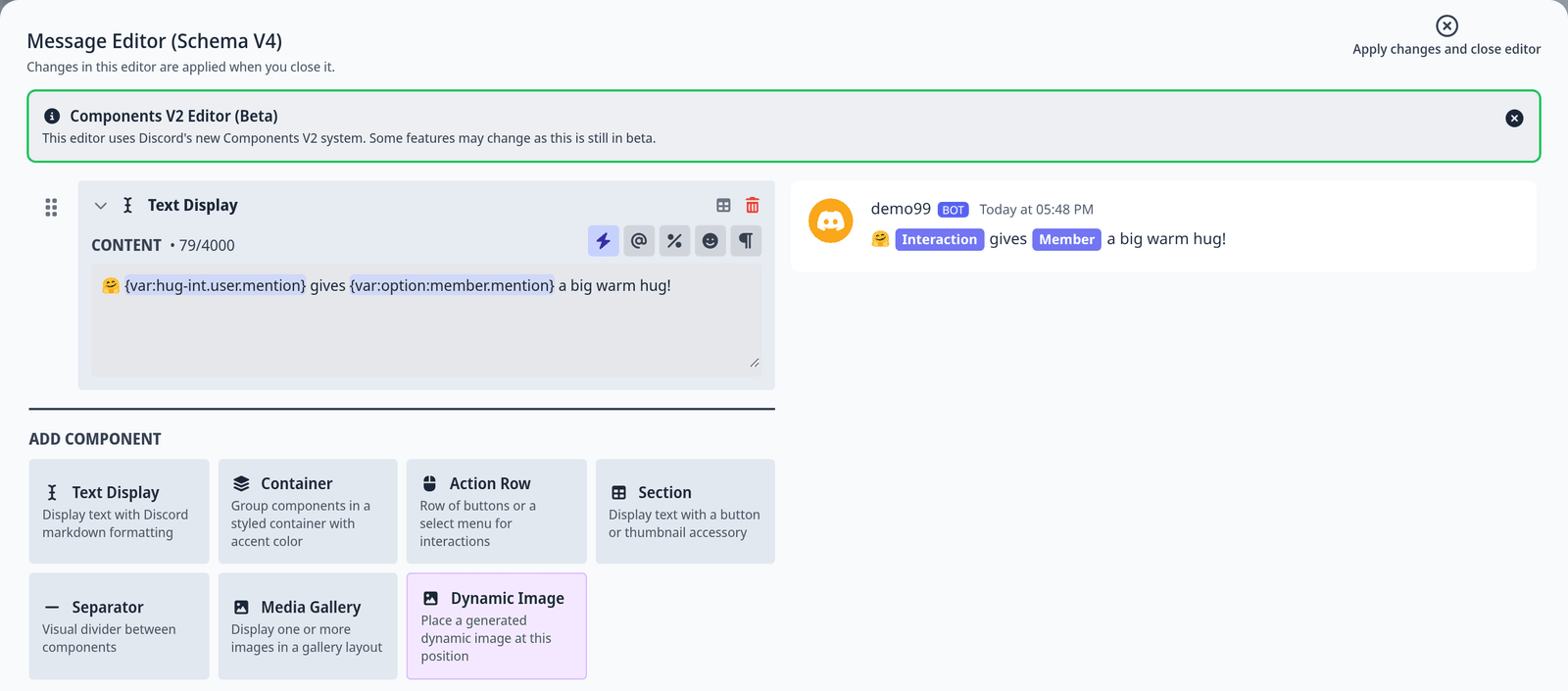
Inside a flow, text fields in the message editor get an extra lightning button, Insert value. You find it on the message content, embed descriptions, embed field values, text displays, section text and button labels. To use it:
- Click into the text where the value should go.
- Click Insert value and pick the value.
- The value appears as a highlighted
{var:...}placeholder. Leave it exactly as it is.
Your bot replaces the placeholder with the real value every time it sends the message. An empty value leaves that spot empty. If you delete the step a placeholder points to, the Issues tab warns that "A message uses the value ..., which isn't available here anymore", and a test run shows "A value used in a message was missing".
Two ways to build a message:
- Directly in the sending step. Fine for most messages.
- With a Create message step, then pass its Message to one or more sending steps. Useful when you send the same message several times, or edit it later with Edit message.
Messages in flows also support:
- Global parameters like
%guildName%or%botName%, the same ones you use in the rest of your bot's messages. - Message parameters, a section below the message input of sending steps. Click Add parameter, give it a Parameter name, and set its Value like any other input. Every
%name%in the message text is then replaced with that value. - Buttons and dropdowns that start a flow. Choose Start a flow as the button's action and pick the flow. See Buttons, dropdowns and modals.
Where {var:...} placeholders work
Placeholders are replaced in messages: message text, embeds, buttons, dropdowns, modals and the component layout. Anywhere else, they're sent exactly as written. If you type a {var:...} placeholder into a plain text input, like a nickname or a thread name, the Issues tab warns you that it "is sent exactly as written". Use a text template there instead.
Module settings of the type Message are filled in by server admins on the settings page, where there is no value picker. To let a flow put values into such a message, give the setting Parameters in the module's config layout. Admins can then use %name% in their message, and the sending step shows one input per parameter under Message parameters. See Module settings.
Example: the welcome template
The Welcome new members template shows all of this in four steps. Create a flow from it to follow along.
- The Member joined trigger gives the new Member.
- Get server gives the Server, with fields like Name and Member count.
- To uppercase takes the member's Display name as its Text and gives the Result in capital letters.
- Create message builds the message. Its text uses placeholders for the member's Mention, the server's Name, the uppercase Result of step 3 and the server's Member count.
- Send message sends it. Its Message input uses the Message that step 4 gave back.
The Channel of Send message is a placeholder channel in the template. Pick your welcome channel there before you turn the flow on. When someone joins, your bot posts something like "Hello @Sam, welcome to My Server! Make some noise for SAM 🎉 (member #1234)".
Member joined needs the privileged Server Members intent. Switch it on for your bot in the Discord Developer Portal if it isn't already.
Example: an /afk command
This flow puts "[AFK]" in front of a member's nickname and replies with their reason. It uses a text template, an optional option and a fallback.
- Create a blank flow with a Slash command trigger. Set Command name to
afk. Add an optionreasonof the type text and leave Required off. - Add Set member nickname. Set Member with Use value to Command user. Pick Ignore - an empty value is fine here on its May be empty warning, because the command is off in DMs.
- In Nickname, type
[AFK], click Insert a value and pick the Display name of Command user. - Add Reply to interaction. In its Content, write "You're now AFK: " and use Insert value to add the
reasonoption. - Because
reasonis optional, the reply would end after the colon when someone leaves it out. To avoid that, add a Use a fallback when empty step before the reply with thereasonoption as its Value and "no reason given" as its Fallback, and insert its result instead. - Save, turn the flow on and run
/afk reason:lunch.
Common problems with this flow:
- The run fails with a missing permission. Your bot needs Manage Nicknames, and its role has to be above the member's highest role.
- It never works for the server owner. Discord doesn't let bots change the owner's nickname. See Cannot change server owner's nickname.
- Long names fail. Discord limits nickname length, so
[AFK]plus a long display name can be refused.
Common mistakes
| What happens | Why, and how to fix it |
|---|---|
The message shows {var:...} instead of a value | The placeholder was typed into a plain text input, not a message. Use a text template with Insert a value there. |
| A member appears as a number or not at all | You inserted the wrong field. Open the member and pick Mention or Display name. |
| You can't find a value in the Data tab | It doesn't fit the input, or it comes from a step below this one or inside another branch. Turn off Hide values that don't fit, or move the step. |
| Wrong type on an input | The value is of another kind than the input needs. Pick a field of it, or use the conversion the Data tab offers. |
%name% stays in the message | No message parameter with that name is set on the sending step, and it isn't a global parameter. Add it under Message parameters. |