Run history & debugging
Every time one of your flows runs, your bot writes it down: when it ran, how long it took, how it ended and, if it failed, at which step and why. This run history is the first place to look when a flow didn't do what you expected.
Before you put a flow live, you can also try it with a test run. A test run uses your real server, but nothing is sent, changed or deleted.
Where to find runs
- All runs on your server: on the custom commands overview, under Data & history, click Executions.
- Runs of one module: open the module and go to the Executions tab. Pick a flow under Flow to see its runs.
- Runs of one flow: in the flow editor, the Flow tab of the side panel shows the latest runs. Click View all runs for the full list.
- Runs of an installed app: open the app, go to Advanced, click Show developer tools and then Executions.
The run history lives on your bot, like your stored data. While your bot is stopped, the page shows "The bot must be running".
When a flow starts another flow with Call another flow, both are one run. That run is logged under the flow that started it. If you open the history of a flow that only ever gets called, you'll see "No runs of its own" and a list of the flows that call it.
The executions list
Each row is one run and shows:
- The run number, like
#21031. Use it when you ask someone for help. - The status, explained below.
- A flask icon if it was a test run.
- The flow and the trigger that started it.
- When it started and how long it took.
Narrow the list down with the Flow and Status filters. To find out why something went wrong, set Status to Failed and pick the flow.
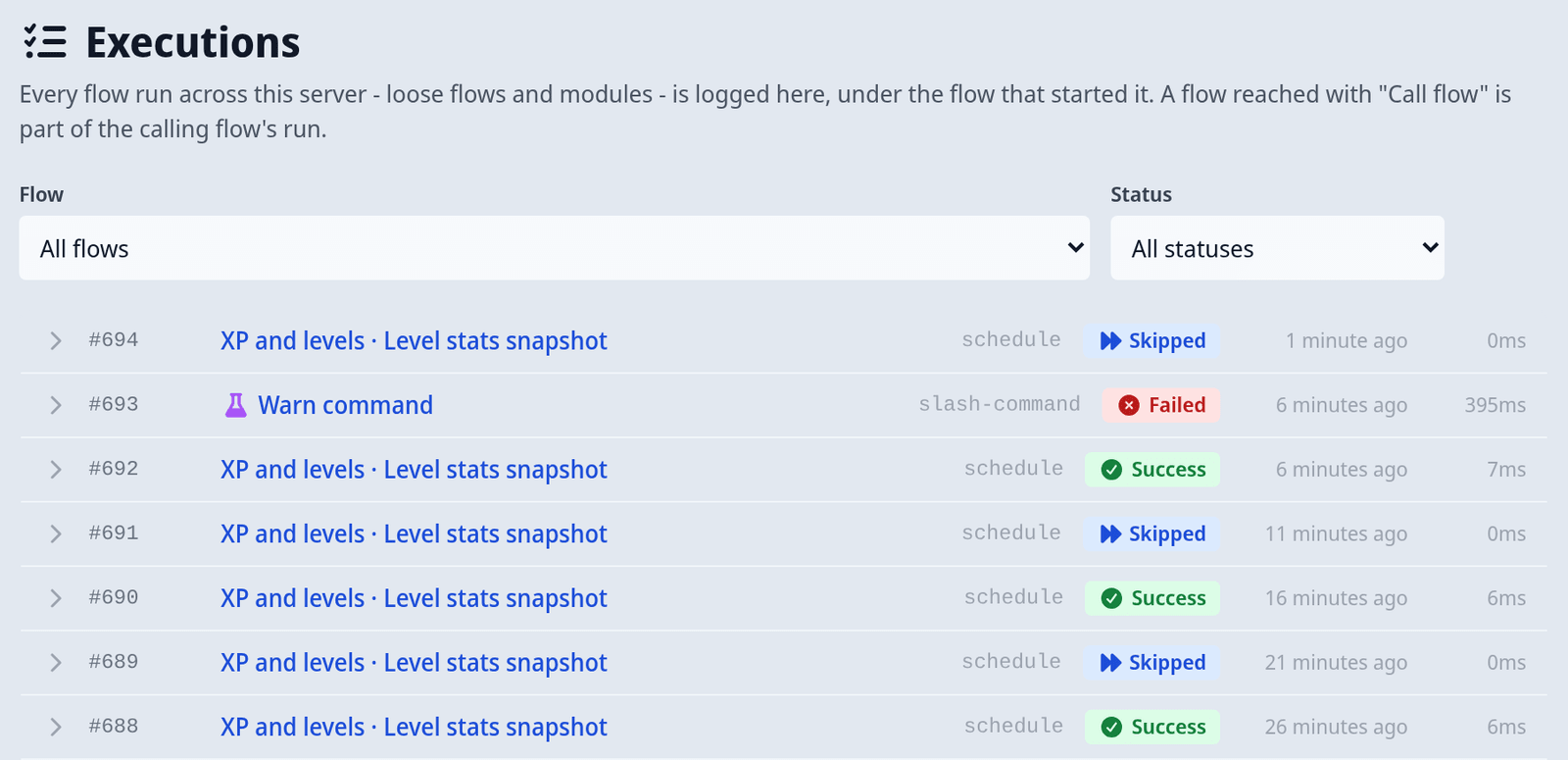
Statuses
| Status | What it means |
|---|---|
| Success | The flow ran to the end. |
| Failed | A step ran into an error and the flow stopped there. Open the run to see which step and why. |
| Stopped | The flow ended early on purpose, with a Stop flow or Return from flow step. This is not an error. |
| Limit exceeded | The run hit a safety limit, for example it took too long or ran too many steps, and was ended. See Plans, limits & safety. |
| Skipped | The trigger fired, but the flow didn't start. The run shows the reason, for example a cooldown, the flow being turned off, too many runs in a short time, or your server's activity budget. |
| Interrupted | The run was cut off before it finished, usually because your bot restarted while it was running. |
A few more things you may see:
- Skips in quick succession are grouped into one row, so a busy trigger can't flood your history.
- A run that waits for someone to click a button or answer a question is written down when it starts waiting. If you save changes to that flow while the run is waiting, the waiting run is cancelled and shows as Interrupted, because it would otherwise continue on steps that no longer exist.
Open a run
Click a row to open it. You'll see the Trigger, the number of Steps run and the Duration.
For a failed run, the first line says where and why, for example "Failed at send-message (MISSING_PERMISSIONS)", followed by a plain explanation such as "The bot is missing a permission it needed for this step." Below it, the original error message often names the exact channel, role or permission.
For a skipped run, you see why it was skipped, like "cooldown active", "flow disabled" or "server rate limit". For an interrupted run, you see a note that the bot restarted.
Test runs also show a Step trace: every step in order, with its status and duration. Click a step to see its Inputs and Outputs. Normal runs don't keep a step trace, so for them you'll see "No step trace was recorded for this run." To see what each step does with real values, run a test run.
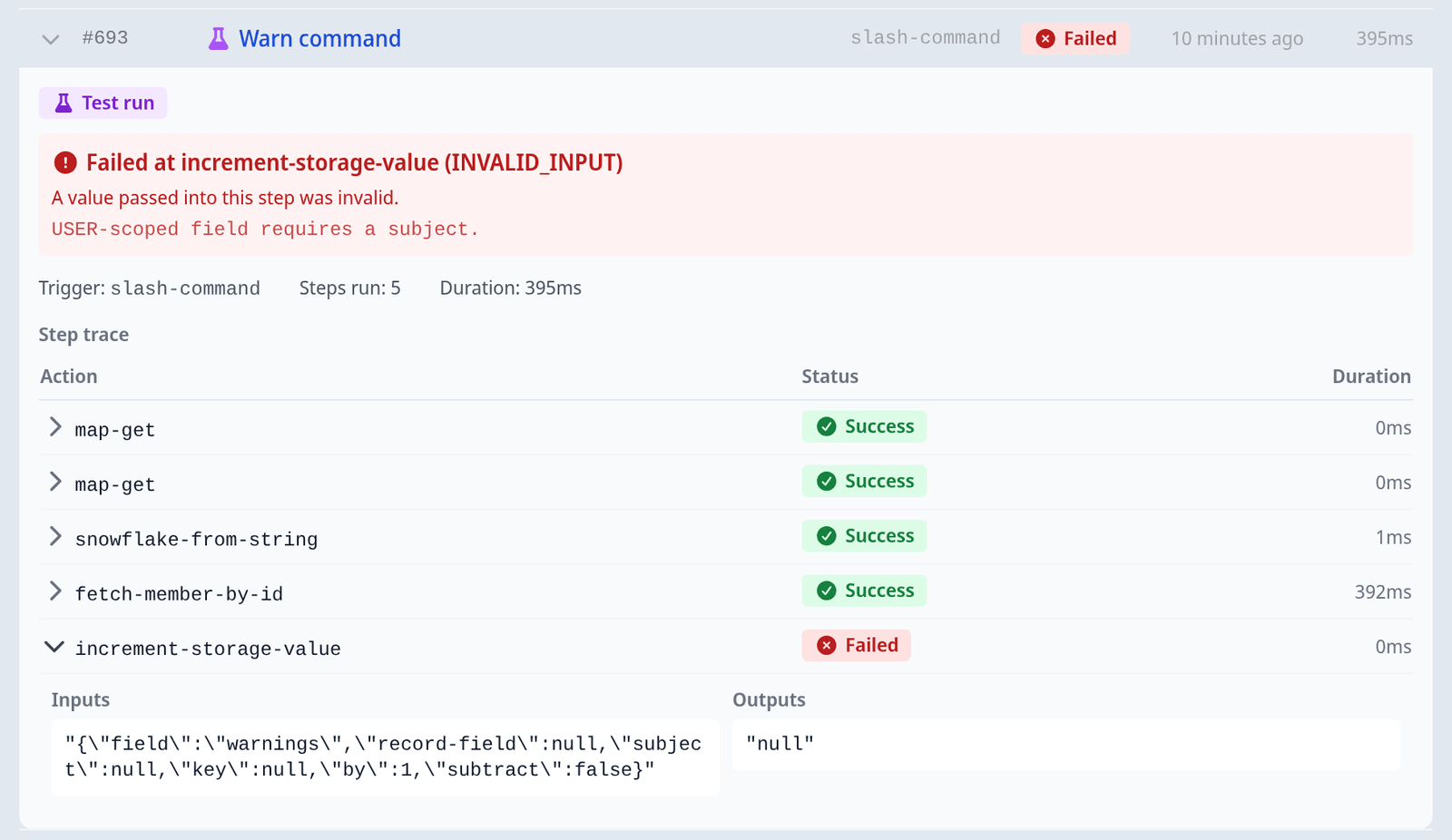
Example: reading a failed run
A member says /warn did nothing. Here's how to find out why:
- Open Executions, set Flow to your warn flow and Status to Failed. The newest failed run is at the top.
- Click the row. The first line reads "Failed at send-message (MISSING_PERMISSIONS)". The step that broke is the one that sends a message, and the reason is a missing permission.
- The sentence below says "The bot is missing a permission it needed for this step." The error message under it names the permission and the channel.
- Steps run shows how far the flow got. Steps before the failing one did run and aren't undone. For example, the warning may already be stored even though the message wasn't sent.
- Fix the cause, here by giving your bot Send Messages in that channel. You don't need to change the flow.
- Run
/warnagain and check that the new run shows Success.
If the flow has several steps of the same kind and you can't tell which one failed, do a test run with the same values. Its step trace shows every step in order, and the failing one is the last.
Messages about how the flow is built
Some failures aren't caused by your server but by the flow itself. For these, the run shows a specific sentence instead of the general one:
| What the run says | Fix |
|---|---|
| "This interaction was already replied to or deferred" | Use Follow up to interaction to send another message, or Edit interaction reply to change the first one. |
| "This interaction has not been replied to or deferred yet" | Add Reply to interaction or Defer interaction reply before following up, editing or deleting the reply. |
| "The interaction expired before the bot responded" | Reply or defer as the first step, before anything slow. |
| "This interaction can no longer be answered" | The flow paused on a wait and continued too late to answer. After a wait, send a channel message instead. |
| A wait step "cannot pause inside a loop" | Move the wait step outside the loop. |
| "A required value was missing while this action ran" | One of the step's values was empty, deleted or not set yet. Add a fallback, or check that it's set first. |
Common errors
| Code | What happened | What to do |
|---|---|---|
MISSING_PERMISSIONS | Your bot was missing a Discord permission for this step. | Give your bot the permission in that channel or server. For role changes, move your bot's role above the role. |
NOT_FOUND | Something the step pointed at no longer exists, like a deleted channel, role or message. | Pick the channel or role again in the step or in the module's settings. |
INTERACTION_EXPIRED | Your flow took too long before answering a command or button, and Discord gave up on it. | Reply early, or add Defer interaction reply before slow steps. |
INVALID_INPUT | A value passed into the step was not valid for it. | Check the values the step uses. One may be empty or of the wrong kind. |
STORAGE_ERROR | Reading or writing stored data failed. | Check that your server's storage isn't full. |
LIMIT_EXCEEDED | The flow hit a limit, such as your server's activity budget or a loop that ran too often. | See Plans, limits & safety. |
DESTRUCTIVE_LIMIT_EXCEEDED | The flow deleted, banned or kicked more than it's allowed to in a short time. | Check that the flow only targets what you meant it to. |
AI_CREDITS_EXHAUSTED | Your server has no AI Coins left, so the AI step didn't run. | Top up your AI Coins. |
DISCORD_API_ERROR | Discord refused the request. | Read the error message. It usually says what Discord didn't accept, like a message that is too long. |
TIMEOUT | The step took too long. | Try again later. If it keeps happening, move slow work into its own flow. |
UNKNOWN | Something unexpected went wrong. | Run the flow again. If it keeps failing, share the run number in the beta channels on our Discord. |
You can also catch errors inside a flow. Put the steps in a Try block. When one of them fails, the On error branch runs instead of failing the whole flow, and it gets the error code and message. See the Control flow reference.
Test runs
A test run runs your flow against your real server data, but simulated: nothing is sent, changed or deleted. Stored data is read but never written. The result shows each step and what it would have done.
- Open the flow in the editor and click Test run in the toolbar. Your flow is saved first.
- Fill in what the trigger needs. For a slash command with subcommands, pick the Subcommand. For a context-menu command, pick the Target user, or the Target message ID and Target channel. For a trigger with options or parameters, fill them in.
- Optionally open Advanced options (optional) and choose who it runs as (Run as), the Channel, the Message content or, for autocomplete, the Typed value.
- Click Run test.
The result opens in the same window with the banner "Simulated: no real actions were performed.", any Warnings, and the full step trace. Click Run again to try different values. Test runs also appear in the executions list with a flask icon.
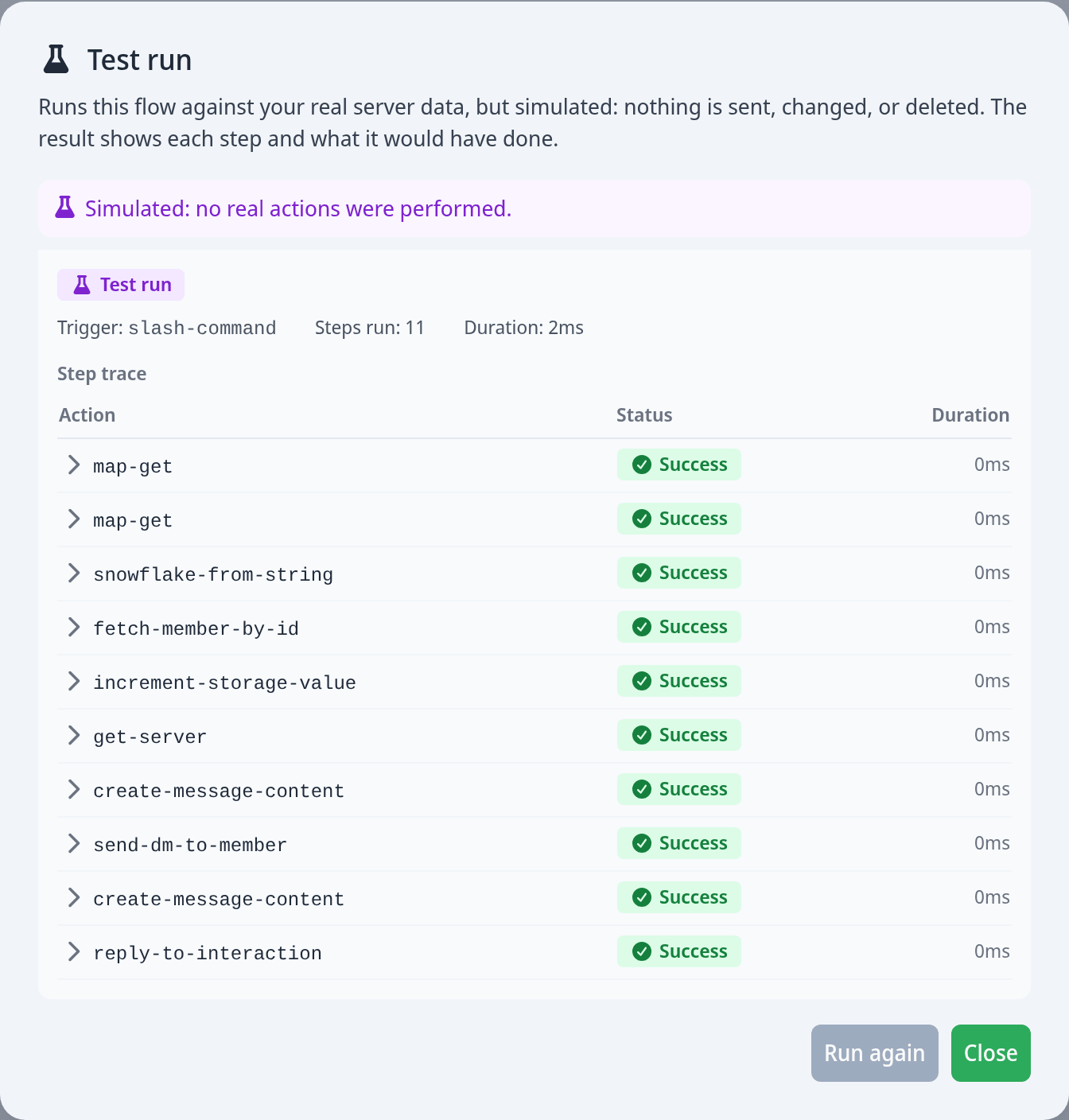
A few things to know:
- Fix errors first. A flow with validation errors can't be tested. You'll see "Fix the flow's validation errors before testing".
- Test runs stop at waits. If your flow waits for a button click or a confirmation, the test run stops there and doesn't walk the branches after it.
- Warnings point at real problems. For example, "A value used in a message was missing" means a real run would send that part empty.
- Test runs don't count towards cooldowns or the limit on how often flows can start.
When a test run can't start
| Message | Fix |
|---|---|
| "Fix the flow's validation errors before testing" | Open the Issues tab and fix the blocking issues. |
| "Save the flow before testing it." | Save the flow once, then test. |
| "Bot offline" | Start your bot and try again. |
| "Test runs aren't available on this bot version yet." | Restart your bot so it installs the latest version. |
| "Pick a subcommand to test" | Choose the Subcommand to run. |
| "Pick a target to test" | For a context-menu command, choose the user or message to run it on. |
Test run warnings
Warnings show things a real run would do differently from what you built:
| Warning | What it means |
|---|---|
| "A value used in a message was missing" | A message uses a value that wasn't available at that point, so that part would be empty. |
| "A simulated value is missing" | The test couldn't fill in something a real run provides. Usually nothing to fix. |
| "Some components were left out of a message" | Some buttons or menus couldn't be used in this kind of message and weren't sent. |
| "A message had too many component rows" | Discord limits the rows of buttons and menus per message, so the extra rows were removed. |
| "A Components V2 message was sent as a classic message" | A step added text or embeds, which Discord doesn't allow with that layout. Containers, sections and separators were lost. |
| "Message text shortened" | The text was longer than Discord allows and was cut. |
| "Embed footer removed" | Your plan doesn't include embed footers, so the footer was left out. |
| "Global parameters weren't available" | Placeholders for bot and server details were left as written in this test. |
How long runs are kept
The run history is kept for a limited time. Older runs are removed automatically, and on a busy server the oldest runs are removed sooner to make room for new ones. If you need to look into a failure, check the history soon after it happens.