Triggers
Custom Commands V3 is in active beta, and we're changing a lot of things as we go. We'll be reworking this documentation once the current beta cycle wraps up, so some details on this page may be outdated in the meantime.
The trigger decides when a flow runs. Every flow has one trigger, at the top of the diagram. When it fires, your bot runs the flow's steps from top to bottom.
A trigger also hands values to your steps. A Member joined trigger gives you the new Member, a Message created trigger gives you the Message, its Author and its Channel, and a Slash command trigger gives you the Interaction plus every option the person filled in. You use these values in your steps, see Values, variables & messages.
This page helps you choose a trigger and explains the settings of each kind. Every single trigger, with its settings and the values it gives, is listed in the reference pages linked below.
Which trigger do I need?
| You want the flow to run when... | Use |
|---|---|
| a member types a command | Slash command |
| a member right-clicks a user or a message and picks your command | User context menu used or Message context menu used |
| a member clicks a button or picks from a dropdown your bot posted | Button clicked or one of the dropdown triggers |
| a member sends a pop-up form | Show modal and await submit inside the flow that shows it, or Modal submitted |
| something happens on your server, like a join or a new message | One of the server event triggers |
| at fixed times, like every Monday at 9:00 | Schedule |
| at one moment that a flow works out, like "in 10 minutes" | Scheduled run, booked by another flow |
| another flow needs it as a building block | Manual trigger |
| several flows should react to the same thing you announce | Custom event received |
Two rules of thumb. If a person starts it on purpose, it is a command, a button, a dropdown or a modal. If it should happen on its own, it is a server event or a schedule.
Pick or change a trigger
- In a new flow, click Select trigger.
- Pick a category, then the trigger. You can also search.
- The trigger's settings open in the panel under Trigger settings. Fill in the required ones. Required settings that are empty show up in the Issues tab.
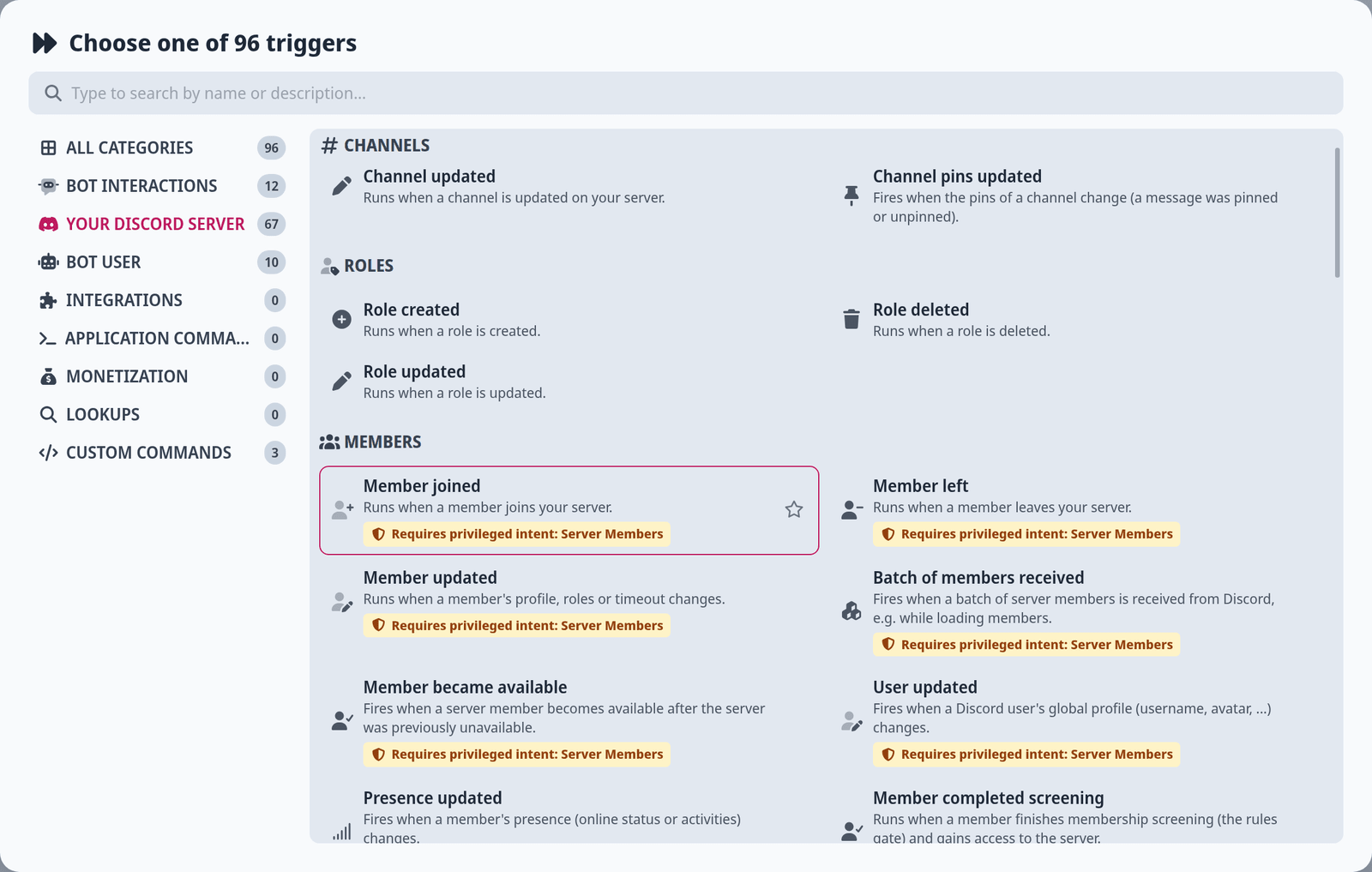
To swap the trigger of an existing flow, click Change trigger and confirm with Choose a new trigger. Your steps stay, but every input that used a value from the old trigger loses its connection and shows Connection lost. Pick a new value for each of them.
Some triggers show a badge:
- "Requires privileged intent: Server Members", "Presence" or "Message Content" - the trigger needs a privileged Discord access that you switch on for your bot in the Discord Developer Portal. If your bot was started without it, the editor shows "This flow needs a bot restart before its trigger can fire" once the flow is on. Switch the intent on and click Restart bot now. Until then, the rest of your bot keeps working and only this flow stays off.
- "Not available" - Discord no longer sends this event, so a flow with this trigger would never run. Pick another one.
Commands
Slash commands
Slash command runs when someone uses your command. See the Slash commands reference.
| Setting | What it does |
|---|---|
| Command name | The name after the /. Lowercase letters, numbers, dashes and underscores, no spaces. |
| Description | Shown under the command in Discord's command list. |
| Required permissions | Only members with these Discord permissions see the command. Admins can still change this per role or channel in Discord's server settings under Integrations. |
| Allow in DMs | Off by default. Turn it on to let people use the command in a DM with your bot. |
| Age-restricted | Only shows the command in age-restricted channels. |
| Options | The values people fill in when they run the command. |
Click Add option for each value you want. Each option has:
| Field | What it does |
|---|---|
| Name and Description | Shown in Discord. Same naming rules as the command name. |
| Type | What people can enter: text, a whole or decimal number, yes/no, a user, a server member, a channel, a role, a user or role, or a file attachment. |
| Required | People must fill it in. Discord needs all required options before the optional ones, and the editor warns you if the order is wrong. |
| Choices | A fixed list to pick from, each with a Choice name people see and a Choice value your flow gets. |
| Autocomplete | Your bot suggests values while people type. Can't be combined with choices. |
| Minimum value / Maximum value | For numbers. |
| Minimum length / Maximum length | For text. |
| Allowed channel types | For channel options, for example only text channels. |
Add subcommand and Add group turn the command into one with subcommands, like /ticket open and /ticket close. A level holds either subcommands or options, not both. Use the Branch on subcommand step to run different steps per subcommand. The editor offers to add it for you.
A live preview above the options shows the command the way Discord displays it.
What happens when you save. When an active slash command flow is saved, your bot registers the command with Discord. Two things can stop that, and both show up in your bot's issue list:
- "A Custom-Commands command conflicts with an existing command" - another command of your bot, for example a V2 custom command or a built-in module's command, already has that name. Rename one of them. If two V3 flows use the same name, only one of them gets it.
- "Your server hit Discord's command limit" - Discord limits how many commands one bot can have on a server. Deactivate flows you don't need.
Autocomplete
For an option with Autocomplete on, you have two choices:
- Suggestions in the option itself. Your bot answers with that list on its own. No flow needed.
- A flow with the Autocomplete requested trigger. Leave Suggestions empty and click Create autocomplete flow in the option. You get a new draft named "Autocomplete:" plus the option name, already set to your command and option, with a Send autocomplete response step to fill in.
Autocomplete runs again on every keystroke, so an autocomplete flow may only look things up. Steps that change something are refused there.
Context menus
User context menu used and Message context menu used add a command under Apps when people right-click a user or a message. They have the same Command name, Required permissions, Allow in DMs and Age-restricted settings as a slash command, but no options. The flow gets the Interaction, which holds the user or message that was clicked. See the Context menus reference.
Buttons, dropdowns and modals
Button clicked, Dropdown submitted and the User, Role, Channel and User-or-role dropdown submitted triggers run when someone uses a button or dropdown your bot posted. See the Buttons and Dropdowns references.
You don't set these triggers up in the trigger itself. You link the button to the flow where the button is made:
- Open the message that should carry the button in the message editor, for example in a Send message step of another flow or in a module setting of the type Message.
- Add a button and choose Start a flow as its action.
- Under Flow, pick your flow. The list only shows flows whose trigger fits, so a button only offers flows with Button clicked.
- Optional: if several buttons start the same flow, give each a different State under Advanced. The flow can read it to tell which button was clicked.
- Save, and send the message again so the button exists in Discord.
Once linked, the trigger shows "Started by 1 linked component" and the flow card shows the number of components. A flow that nothing starts yet shows "Nothing starts this flow yet."
If you delete the flow, the button stops working. The message editor marks it with "The linked flow no longer exists, so this component will stop working."
Advanced matching (custom-id pattern) is for special cases only, for example buttons another tool created. It matches any component whose custom ID fits the pattern.
Modals (pop-up forms) can be handled in two ways:
- Show modal and await submit shows the form and waits in the same flow. Put the next steps in its "Later, when the form is sent" branch. This is the simpler way.
- Show modal in one flow, and a second flow with Modal submitted whose Custom ID Pattern matches the modal's Custom ID.
Read the answers with Get modal field. A modal can only be shown in answer to an interaction, like a slash command or a button click.
Server events
Most triggers react to something on your server, whether a person, a moderator or another bot caused it. Most of them have no settings: they run for every event of their kind, and you narrow them down with steps like If. These have settings:
| Trigger | Settings |
|---|---|
| Message created | Channels, Match type (Any message, Contains, Equals, Starts with, Ends with, Regex), Pattern, Ignore casing, Ignore bots |
| Reaction added, Reaction removed | Channels, Specific Emoji, Ignore Bots |
| Typing started | Channels, Ignore Bots |
| Other message, reaction, pin and poll triggers | Channels |
| Audit log entry created | Actions, to only react to some kinds of audit log entries |
Leaving Channels empty means every channel your bot can see.
Some server events need a privileged intent:
| Intent | Needed by |
|---|---|
| Server Members | All member triggers, like Member joined and Member left |
| Message Content | Message created, Message updated, Message deleted and Messages bulk deleted |
| Presence | Presence updated |
Browse the rest by category: Server messages, Roles, Channels, Threads, Voice, Discord events, Bans, AutoMod and Message polls. Triggers about your bot itself, like Bot ready or Bot joined a server, are under Bot user.
Message created, Typing started or Presence updated can fire very often. Use the trigger's own settings first, then an If step at the top, so your flow doesn't spend your activity budget on runs that do nothing. The Issues tab warns you when a busy trigger has no filter before steps that change something.
Schedules
Schedule runs a flow again and again on a fixed schedule.
- Pick the Schedule trigger.
- In the Schedule card, choose how often it Runs: Every few minutes, Every hour, Every day, Every week or Every month.
- Fill in the fields that appear, like the time, the day of the week or the day of the month. A sentence like "Runs every day at 09:00." confirms what you picked.
- If you know cron expressions, Advanced (raw cron) lets you type one instead.
Schedules use your bot's timezone, which you set in your bot's configuration. A schedule that runs too often is refused when you save. Inside a module, Use module setting lets the schedule come from a module setting that holds a schedule, so admins can change it without opening the flow.
A schedule has no person attached to it. Steps that need a member or a channel must get them some other way, for example from a fixed value, a module setting or a step that fetches them.
Started by another flow
These triggers let flows work together. See the Flows reference.
| Trigger | Runs when | Good to know |
|---|---|---|
| Manual trigger | another flow runs it with Call another flow | The calling flow waits until it is done. The run counts as part of the calling flow's run in the history. A flow can't call itself. |
| Scheduled run | the time another flow booked with Schedule flow run has come | Booked runs survive bot restarts. Runs that came due while your bot was offline run when it is back. Each one shows up as its own run. |
| Custom event received | another flow sends a custom event with the same Event name using Emit custom event | Every flow listening for that name runs, each as its own run. |
Manual trigger and Scheduled run can declare Parameters, typed values the calling flow passes in:
- In the trigger settings, click Add parameter.
- Enter an ID, like
member. It can't be changed later, because other flows refer to the parameter by it. To rename one, remove it and add a new one. - Pick the Type, write a Description and turn on Required if callers must pass it.
The calling step then shows an Arguments section with one input per parameter. A Manual trigger can also declare Return values, which it hands back with the Return from flow step. The calling step then gives them as values you can use further down. If you declare return values but no path ends with Return from flow, the editor warns you.
Example: a /hug command
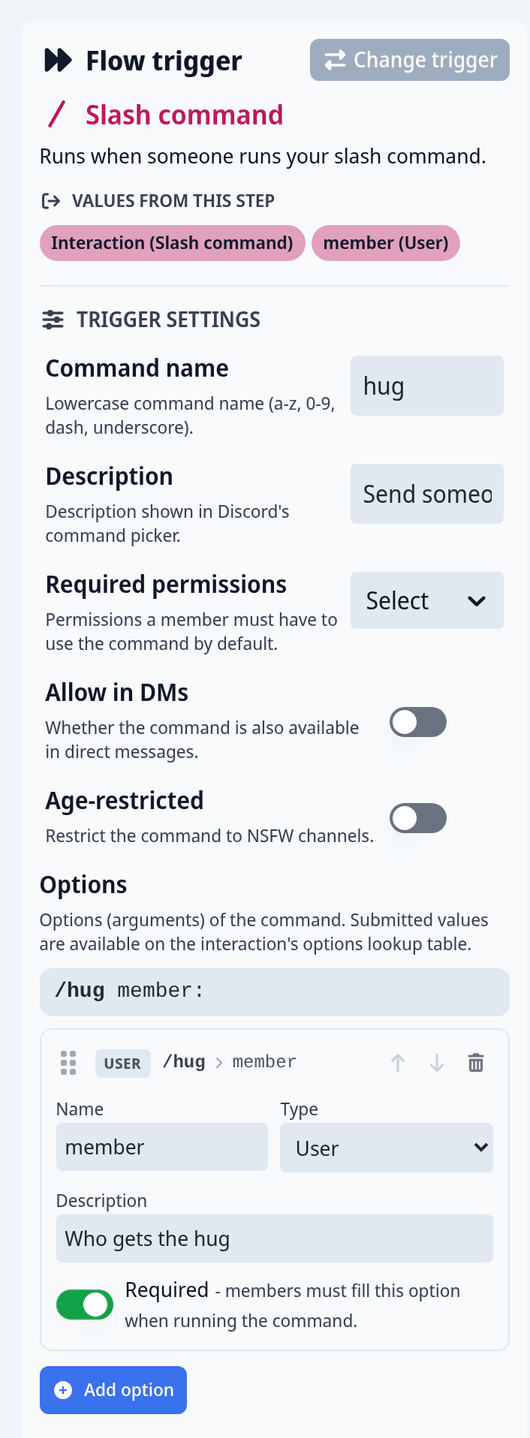
- Create a blank flow and pick Slash command.
- Set Command name to
hugand Description to "Send someone a hug". - Click Add option. Set Name to
member, Type to user, a Description, and turn on Required. - Add the step Reply to interaction and set Interaction to the trigger's Interaction.
- Open its Content and write the message. With Insert value, add the Mention of the person who ran the command, the text "hugs", and the Mention of your
memberoption. Options show up under Trigger in the value picker. - Save and turn the flow on.
When someone runs /hug member:@Alex, the bot replies with something like "@Sam hugs @Alex".
Example: an "I accept the rules" button
Two flows: one posts a message with a button, the other gives a role when someone clicks it.
- Create a flow named "Accept rules" with the Button clicked trigger. Add Add role to member. Set Member to the member who clicked (shown as Clicking member) and Role to your member role. Add Reply to interaction with "Welcome aboard!" and turn on Ephemeral, so only that member sees it. Save and turn it on.
- Create a second flow named "Post rules" with a Slash command trigger, Command name
post-rulesand Required permissions set to Administrator, so only admins see it. - Add Send message. Set Channel to your rules channel, write your rules in the Message, add a button labelled "I accept", choose Start a flow and pick "Accept rules".
- Add Reply to interaction with "Posted." and Ephemeral on. Save and turn it on.
- Run
/post-rulesonce. The button now gives everyone who clicks it the role.
If clicking the button fails with a missing permission, your bot's role has to be above the role it gives, and it needs the Manage Roles permission.
Answer interactions in time
Slash commands, context menus, buttons, dropdowns and modals are interactions. Discord expects your bot to answer every interaction within about three seconds. Otherwise the person sees "The application did not respond", and the run fails with a message that the interaction expired.
- Answer on every path. Every way through the flow needs a reply, a message update, a modal or a step that waits for something. The editor warns you when a path can end without an answer. An empty Otherwise branch is the usual cause.
- Defer slow work. If your flow does slow things first, add Defer interaction reply before them and answer later.
- Only reply once. The second answer to the same interaction has to be Follow up to interaction, or Edit interaction reply to change the first one. The editor warns you about a second reply on the same path.
- Don't answer after a long wait. An interaction can only be answered for a limited time after it arrived. After a long Wait, send a normal message to the channel instead.
Cooldowns
Every trigger can have a cooldown that limits how often the flow runs, per user, per channel or for the whole server. See Cooldowns.