Build your first flow
Custom Commands V3 is in active beta, and we're changing a lot of things as we go. We'll be reworking this documentation once the current beta cycle wraps up, so some details on this page may be outdated in the meantime.
This tutorial sets up a /remind slash command from a template. Members run /remind, say in how many minutes and what about, and your bot sends them a DM when the time is up. It takes about ten minutes and covers everything you need for bigger flows later: a slash command with options, steps that pass values along, a message with a value in it, two flows working together, a test run, turning flows on and checking the run history.
Before you start, make sure that:
- Custom Commands V3 is on for your server. See Get access.
- Your bot is online. Flows run on your bot, and the editor needs it to load channels, roles and the run history.
- Your bot has no other
/remindcommand, for example from a V2 custom command. Discord allows each command name only once per bot. If the name is taken, change the Command name in step 2.
1. Create the flows from the template
- Open Custom Commands V3 in your server's dashboard.
- Click New custom command flow.
- Under Start from a template, pick /remind command.
- Enter a Flow name, for example "Remind command". Pick a Flow color if you like. It only changes how the flow looks in the dashboard.
- Click Create new flow.
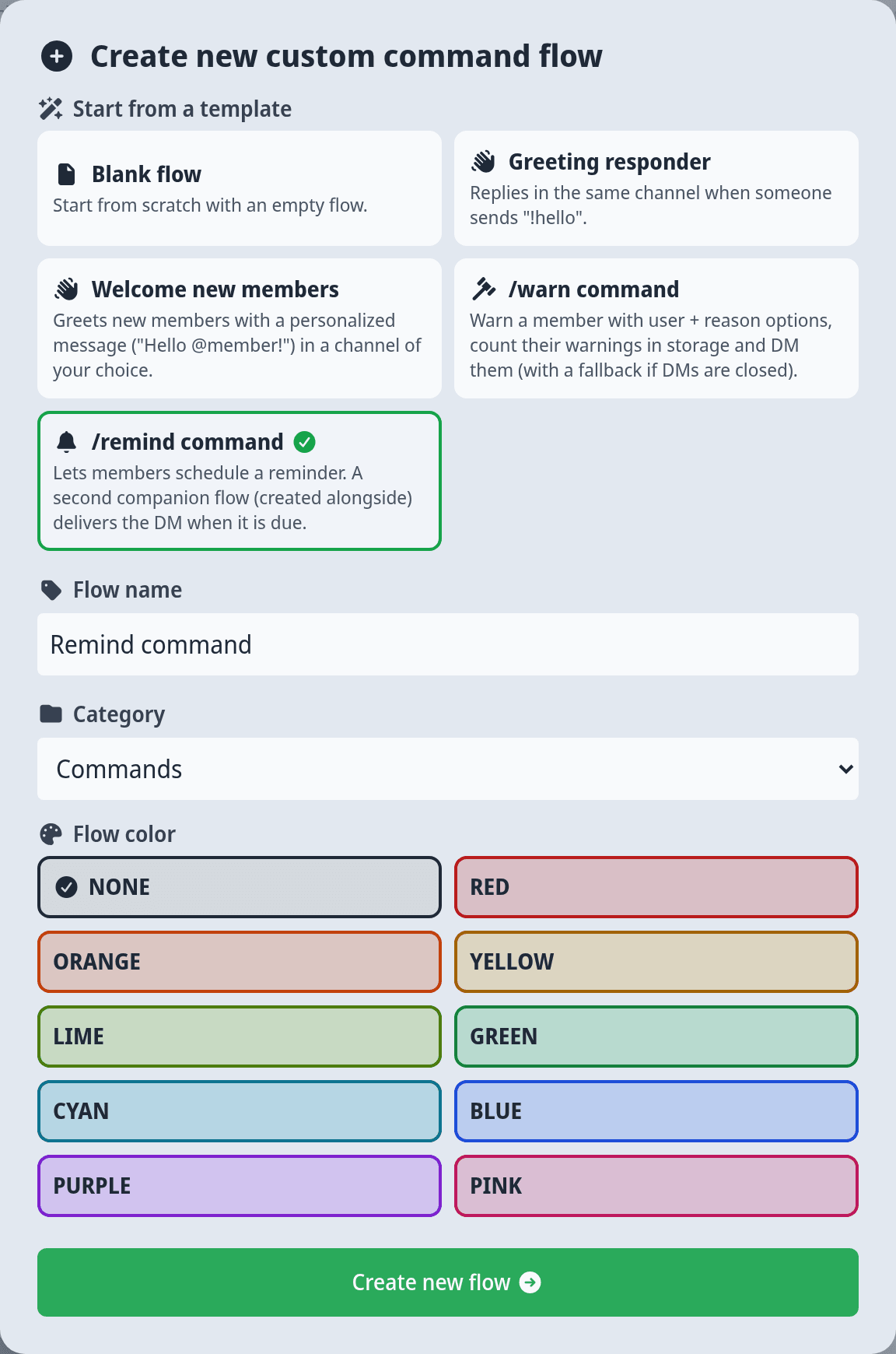
This template creates two flows, and the editor opens the first one:
- Remind command (the name you entered) is the slash command. It works out when the reminder is due and books it.
- Deliver reminder (scheduled) sends the DM when the time has come.
Both start as a Draft, so nothing happens in Discord yet. You find both on the overview.
2. Look at the trigger
The diagram starts with the trigger, the box that decides when the flow runs. Click it to open its Trigger settings:
| Setting | Value in this template | What it does |
|---|---|---|
| Command name | remind | The name members type after the /. |
| Description | "DM me a reminder after the given number of minutes" | Shown under the command in Discord. |
| Options | minutes (Whole number, required) and text (Text, required) | The values members fill in when they run the command. |
| Cooldown | On, per User | Stops one member from running the command many times in a row. |
Above the options, a live preview shows the command the way Discord displays it. You can leave everything as it is. Slash commands need no privileged intent, so there is nothing to switch on in the Discord Developer Portal.
3. Follow the steps
Below the trigger you see seven steps. Click one to see its inputs in the Step tab of the panel next to the diagram. Together they do this:
- Lookup table: get value, Text to whole number and Duration from parts turn the
minutesoption into a duration. - Current date/time and Add to date work out the moment the reminder is due.
- Schedule flow run books a run of Deliver reminder (scheduled) at that moment. Under Arguments, it passes along who ran the command and the
textoption. - Reply to interaction answers the member right away, so Discord knows the command worked.
Each step uses values that the trigger or an earlier step gave. Add to date, for example, takes its Date from Current date/time and its Duration from Duration from parts. That's the main idea of every flow. Read more in Values, variables & messages.
Now open Deliver reminder (scheduled) from the overview. Its trigger is Scheduled run, with the two parameters user and text that the first flow fills in. It looks up the member with Fetch member by ID, builds the DM with Create message and sends it with Send DM to member.
4. Change the reply
The reply only says "Reminder set!". Now make it repeat what the member asked for.
- Go back to Remind command and click the Reply to interaction step.
- Under Content, click the message preview. The message editor opens.
- Change the text to "Got it, I'll remind you about " and leave the cursor at the end.
- Click the lightning button with the tooltip Insert value. A picker opens with the values you can use at this point.
- Pick the
textoption. You find it under Trigger, or by typing "text" into the search box.
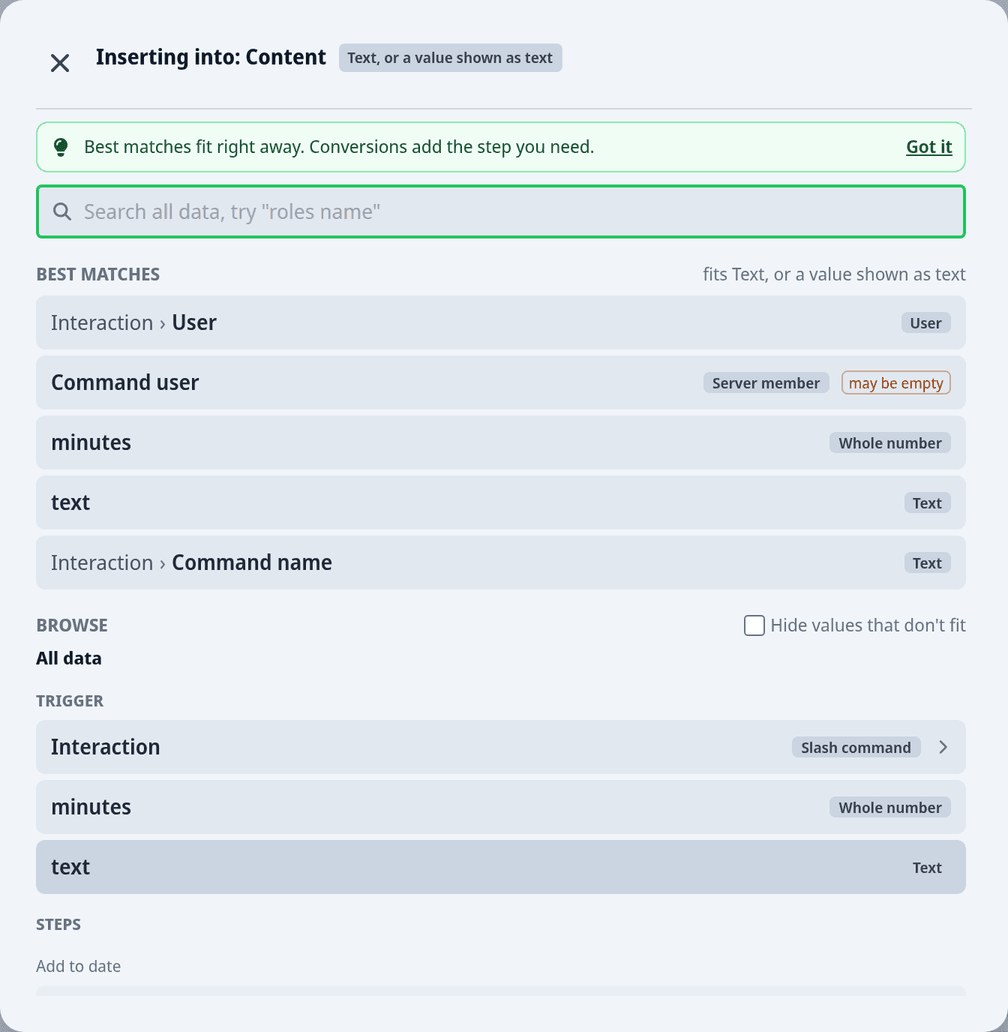
The value appears as a highlighted {var:...} placeholder. Leave it exactly as it is. Your bot replaces it with what the member typed every time the command runs. Close the editor when you're happy with the text.
The template's reply is only visible to the member who ran the command, so it doesn't clutter the channel.
5. Test it without touching Discord
- Click Save changes in the bar at the bottom. The flow is saved as a draft. A test run only works on a saved flow.
- Click Test run in the toolbar.
- Fill in
minutesandtext. Under Advanced options (optional), you can also pick who the run acts as (Run as) and the Channel. - Click Run test.
The result shows each step and what it would have done, under the note "Simulated: no real actions were performed." Nothing is sent and nothing is booked. If a step shows a problem, fix it and click Run again.
6. Turn both flows on
Both flows have to be on. If only the command is on, members can book reminders, but they are never delivered.
- In Remind command, flip the toolbar toggle from Draft to Active and click Save changes.
- Go back to the overview. Open the menu on the Deliver reminder (scheduled) card and click Activate flow.
When you save an active slash command flow, your bot registers the command with Discord on its own. If the save bar says "Saved, but your bot couldn't pick up the changes yet", click Reload bot again.
A flow can only be active when it has no blocking issues. If something is missing, you see "This flow can't be activated yet" with a list of what to fix, and your changes stay unsaved until you fix it or switch back to Draft. See Read validation errors.
7. Try it in Discord
In your server, type /remind, set minutes to 1 and text to anything. Your bot answers with your new reply. About a minute later, the reminder arrives as a DM.
If something doesn't work:
| What you see | What to do |
|---|---|
/remind doesn't show up in Discord | Check that the flow is Active. Then check your bot's issue list for "A Custom-Commands command conflicts with an existing command" and rename the command if needed. See also Slash commands are not showing up. |
| Discord says "The application did not respond" | Open the run history (below). The run failed or took too long before the reply step. |
| The reply comes, the DM doesn't | Check that Deliver reminder (scheduled) is Active. If it is, the member probably doesn't accept DMs from server members. The run history shows the failed run. |
8. See it in the run history
In the editor, open the Flow tab of the panel. Under Recent runs you see your /remind run with its status. Click View all runs to open Executions, the list of every run on your server.
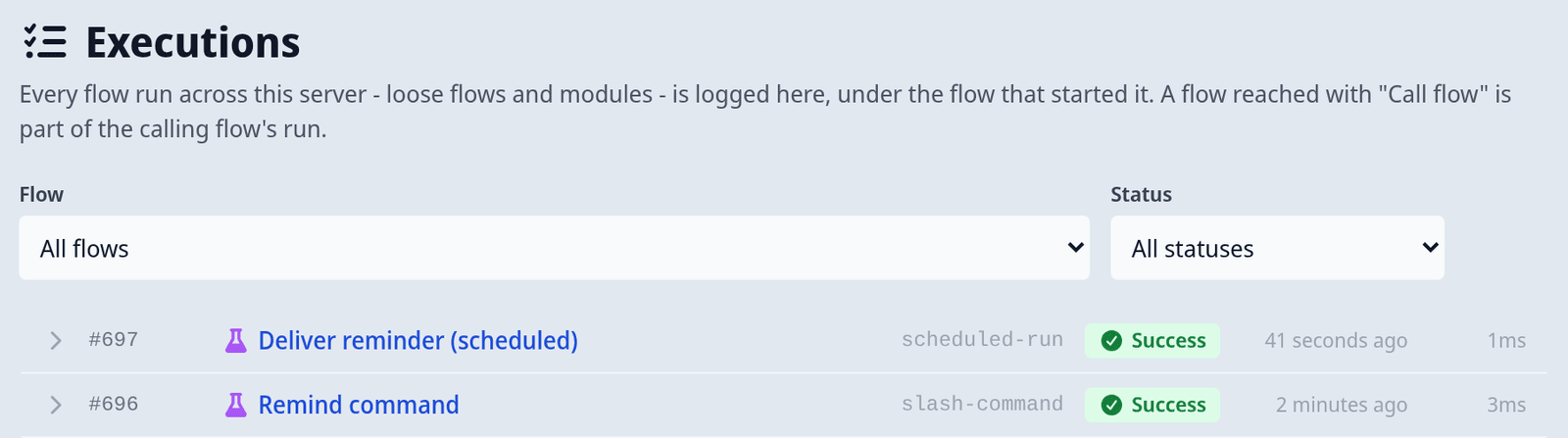
You see two runs: one for Remind command and, a minute later, one for Deliver reminder (scheduled). A booked run is a run of its own, so each flow shows up separately. If a run failed, it shows Failed with the action that failed and the reason. See Run history & debugging.
Booked reminders survive bot restarts. If your bot is offline when one is due, it is sent once your bot is back.
What's next
- Add a step to Remind command, for example one that also posts the reminder in a channel. See Flows & the editor.
- Add an option or a subcommand to the command. See Triggers.
- Remember things between runs with Data storage.